



A customized version of Google’s Android mobile operating system, known as Android Auto (often abbreviated as AA), is intended to be used in cars via the infotainment screen. Through Android Auto, you may couple a contemporary Android smartphone with your vehicle and utilize your phone’s essential functions securely via the dashboard, in-car microphone, buttons, and touchscreen. This helpful user manual covers important topics like phone connectivity and highlights the advantages of utilizing Android Auto over infotainment systems made by manufacturers. Car makers have long struggled to keep up with the rapid growth of smartphone applications and software; many in-house systems and features, like satellite navigation, often become out-of-date or missing information shortly after they are released. With the help of software called Android Auto, you may utilize some of your phone’s most important capabilities while driving and see a condensed version of your phone’s screen when your Android phone is connected to a suitable infotainment head unit. This includes utilizing Google Maps or Waze for navigation, reading text messages, making calls, and streaming music. There are several other third-party apps accessible as well, such as BBC Sounds, Spotify, and WhatsApp. There are presently over 500 new automobiles available for purchase worldwide that are compatible with Android Auto, and several aftermarket car radio head units are available to add Android Auto to older vehicles. The Android website allows you to verify compatibility. An infotainment system problem may possibly be the cause of Android Auto’s persistent disconnections. Check for typical infotainment problems such as a flickering screen or a voice command that doesn’t work. Restart the infotainment system to see whether everything is working properly. If your phone is linked to your car using USB, the problem can be as easy as a loose cable or debris stuck in one or both of the ports. Using an adapter, such as a USB-C to USB-A adapter, can sometimes improve connection stability for Android Auto, especially if your phone or car has different port types.
Tackling Hardware-Related Disconnections
The problems caused by Android Auto’s persistent disconnections include utilizing an out-of-date version of the app, incompatibilities between the app and the car, the Android Auto app’s cache and data, and operating on an old version of the Android operating system. So android auto keeps disconnecting due to incompatibilities. Fortunately, there are simple fixes for this problem, such as verifying app compatibility with the car, rebooting the phone and app, cleaning the Android Auto app cache, upgrading the Android Auto and device OS, etc. Each of these steps is a potential solution to Android Auto disconnecting causes.
Android Auto is a useful program that links an Android smartphone to an automobile’s infotainment system. It has several really great functions, such voice response, GPS, music player, web search, and Google Maps navigation. But android auto keeps disconnecting due to some glitches. Many users report the same issue across different devices and vehicles, highlighting the need for reliable troubleshooting.
Another crucial factor is the USB standard; various USB versions have varying data transmission rates, which has an impact on Android Auto’s functionality. Because the cable needs to be able to endure regular usage and wear and tear, durability and construction quality are also crucial. It is advised to use a cable that is no longer than 1.8 meters. USB standard: data transmission rates vary throughout USB versions. Android Auto recommends USB 3.x or newer cables since they offer improved connection reliability and quicker data transmission. Many online posts recommend using high-speed USB 3.1 or 3.2 cables for better Android Auto stability, as cable speed (data transfer rate) is key for reliable performance. Here’s how to identify and resolve problems with USB connections:
Fixing problems with hardware, including USB drive problems.
Make use of Device Manager. This utility can assist in identifying and resolving issues with linked devices. Conduct a hardware diagnostic examination. Utilize System Restore. This will reverse any recent modifications you may have made to your computer, which should help resolve the usbhub.sys issue. Reset the BIOS to its initial configuration. So that’s why android auto keeps disconnecting. Change out the USB gadget. If the USB port appears to be functional, your device may be the problem. Try using a different USB port. The item you’re attempting to connect, the cable, the USB port, the computer software, or another issue might be the cause of the issue. So why does my android auto keep disconnecting? Basically hardware-related issues main reason behind it.
Reconnect the USB drive after disconnecting it. This can assist in fixing broken USB devices, missing drivers, and damaged files. And why does android auto keep disconnecting? Maybe usb is the main issue. When plugging in the cable, ensure the plug connection is secure, as a loose or unstable plug can cause Android Auto to disconnect. Some users have found that after switching to a certified cable or different port, their setup is working fine without further disconnects. In some cases, a specific fix or upgrade finally fixed persistent Android Auto disconnection issues, providing much-needed relief.
Google claims that Android Auto works with the following gadgets:
Any Android 11.0 phone
A Samsung or Google phone running Android 10.0, Android 9.0 on a Samsung Galaxy S8, Galaxy S8+, or Note 8. A Quora member claims that Android Auto may be installed on any phone running Android 6.0 (kitkat). Android 10 and later phones will come pre-installed with the OS. Notably, Samsung phones are often reported to be more prone to Android Auto disconnecting causes, while Pixel phones have unique battery saver features that can affect connectivity.
These Android versions are compatible with wireless projection: any Android 11.0-equipped phone. An Android 10.0 smartphone from Samsung or Google. Android 9.0 on a Samsung Galaxy S8, Galaxy S8+, or Note 8. Get in touch with your car’s manufacturer to find out more about whether Android Auto is compatible with the display in your car. Your automobile must be Android Auto compatible or have an installed aftermarket unit in order to utilize Android Auto on the display in your vehicle. Not all automobiles with USB ports can use Android Auto. These 2024 vehicles will be equipped with Android Automotive as its infotainment system:
Acura ZDX (2024+)
XT4 Cadillac (2024+)
(2024) Mercedes-Benz EQB 350 4MATIC
Other automobiles using Android Automotive in 2024 are:
The Cadillac Celestiq 2025+ Cadillac CT5
IQ Cadillac Escalade
Lyriq Cadillac
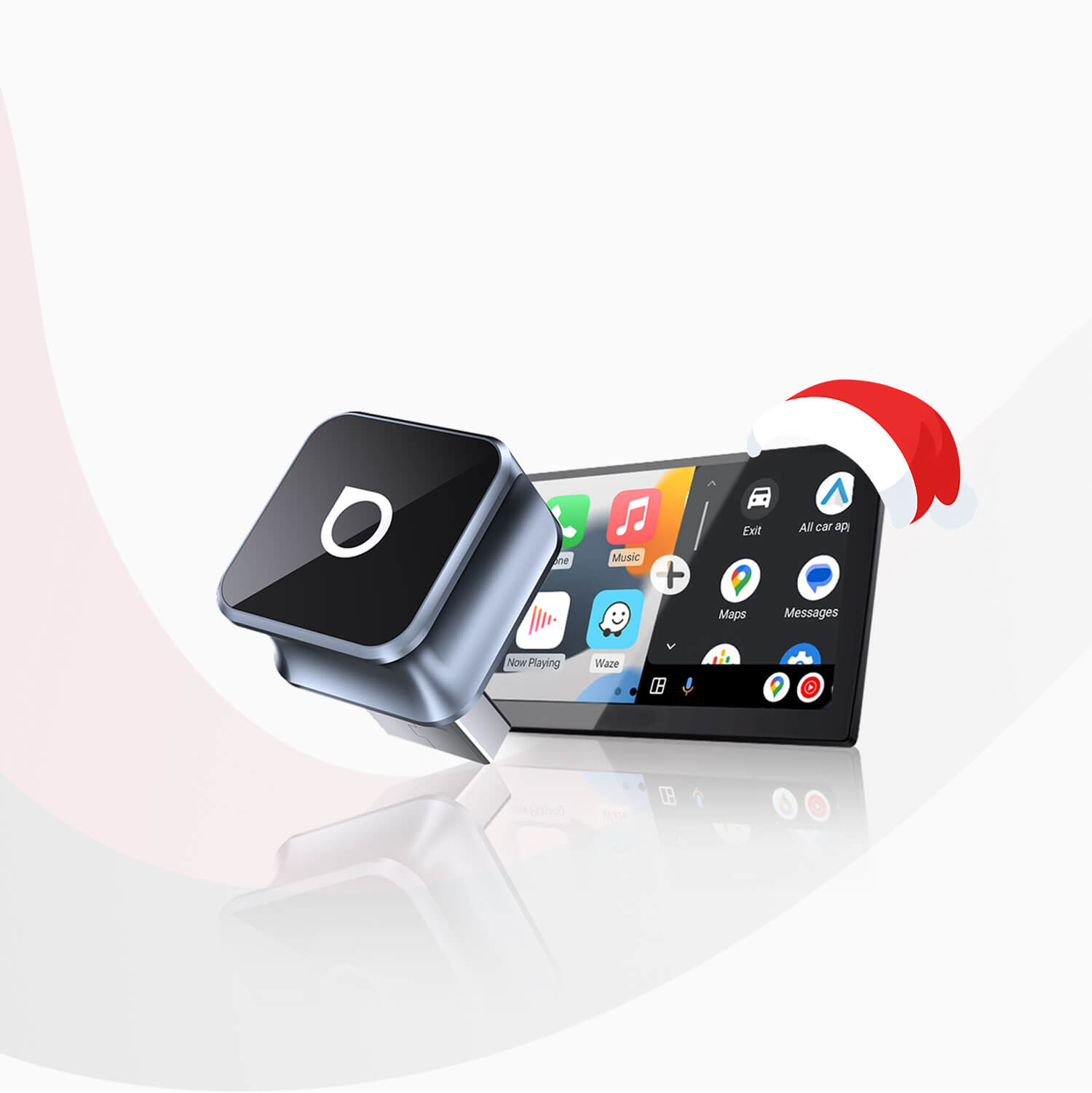
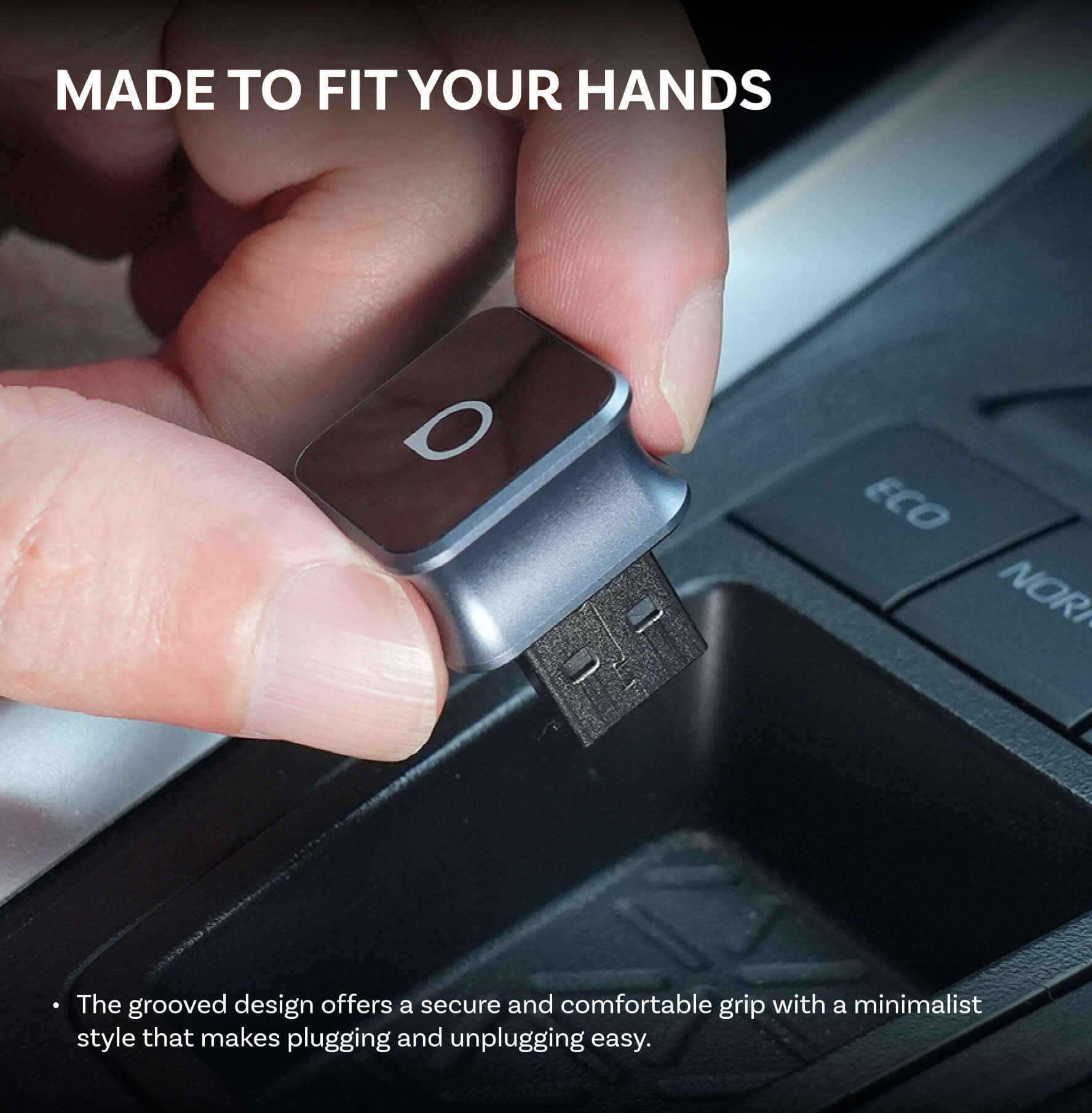
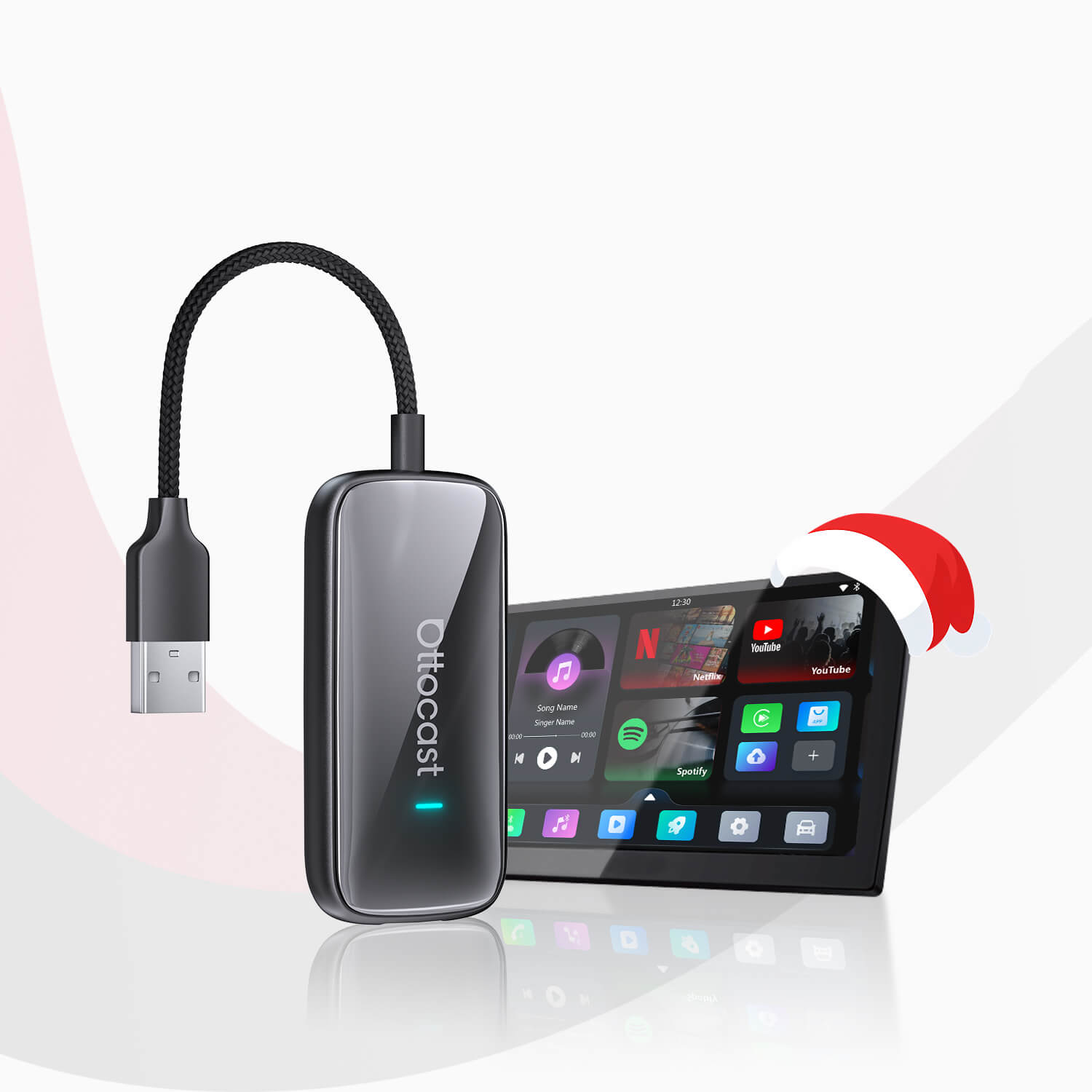
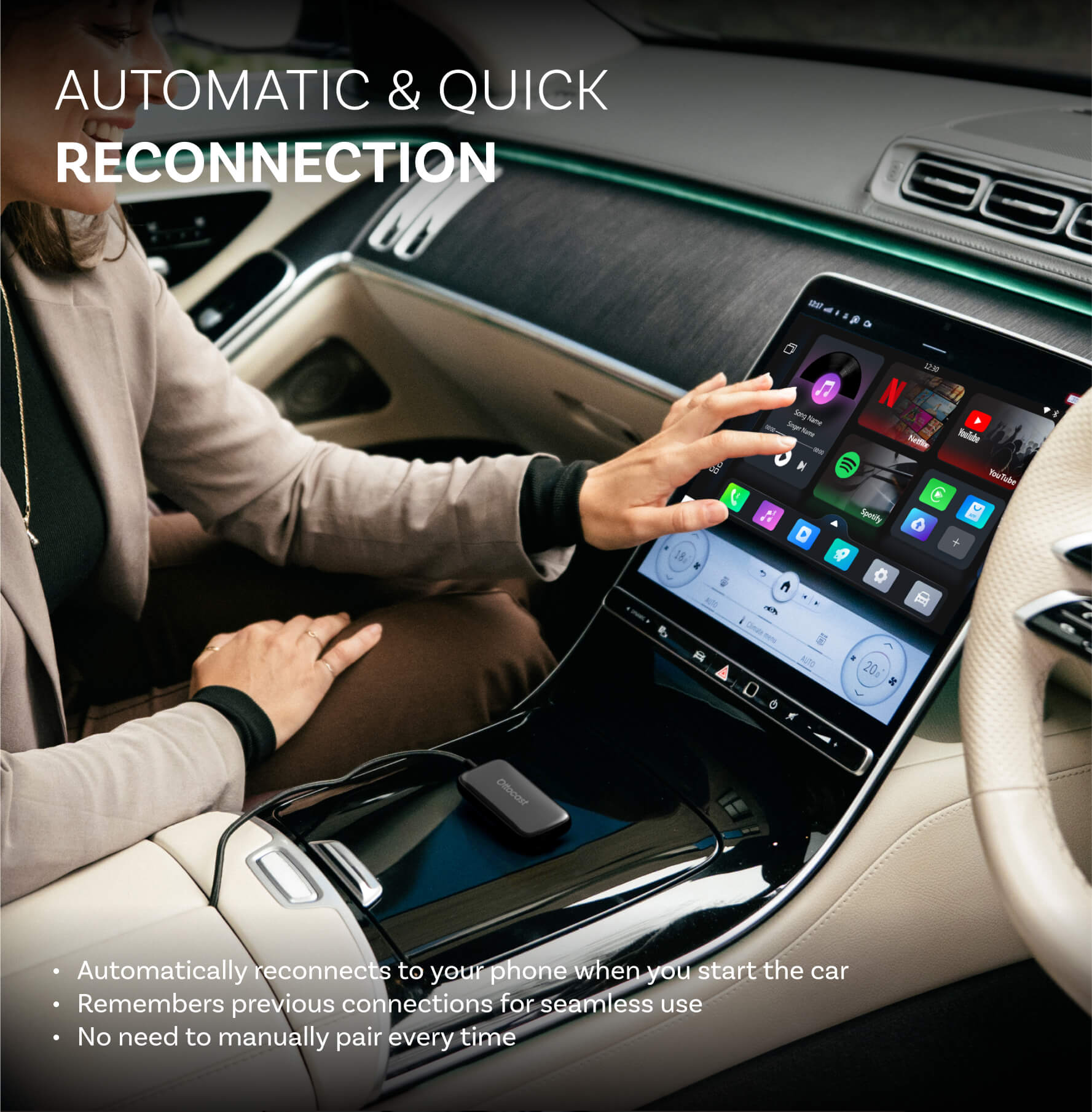
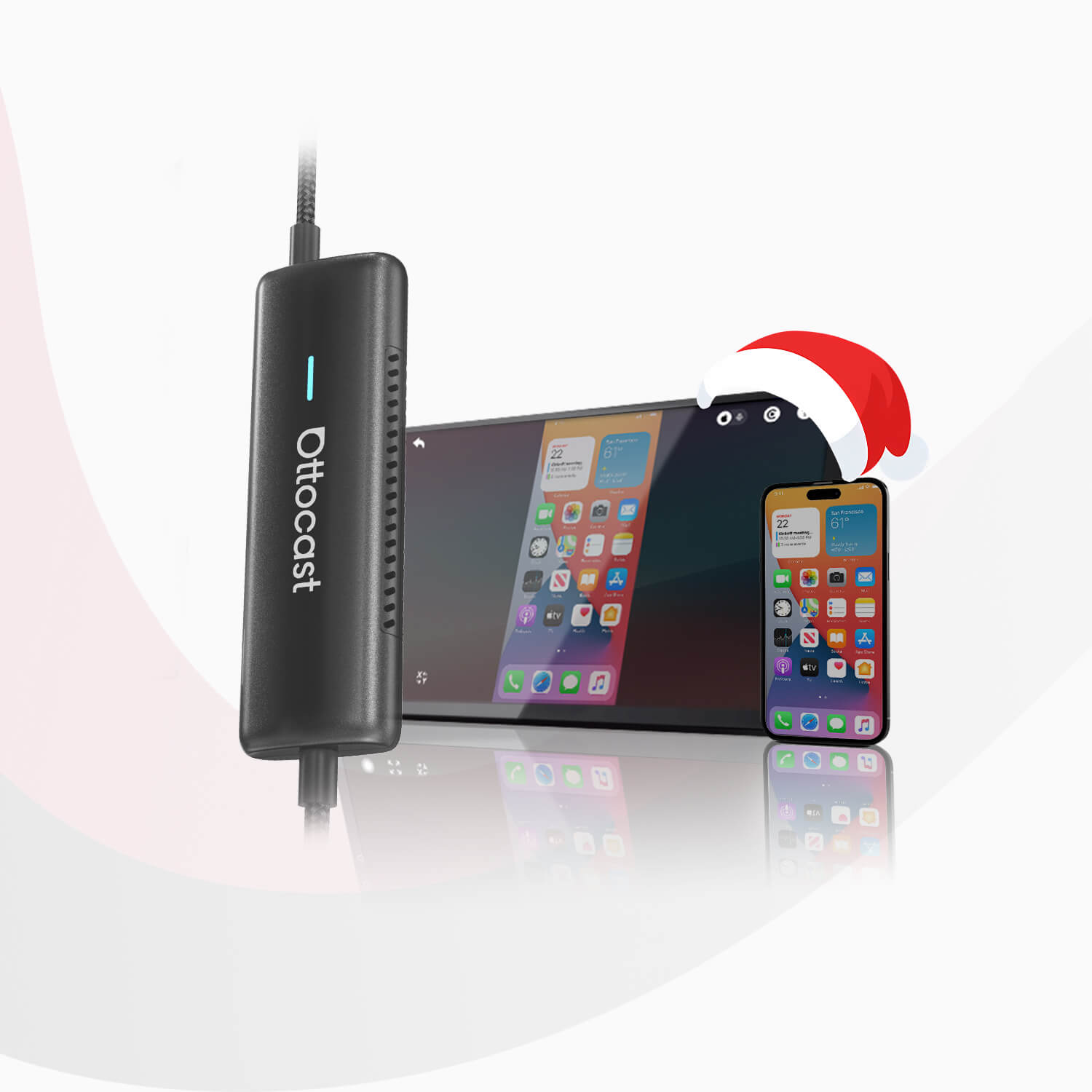
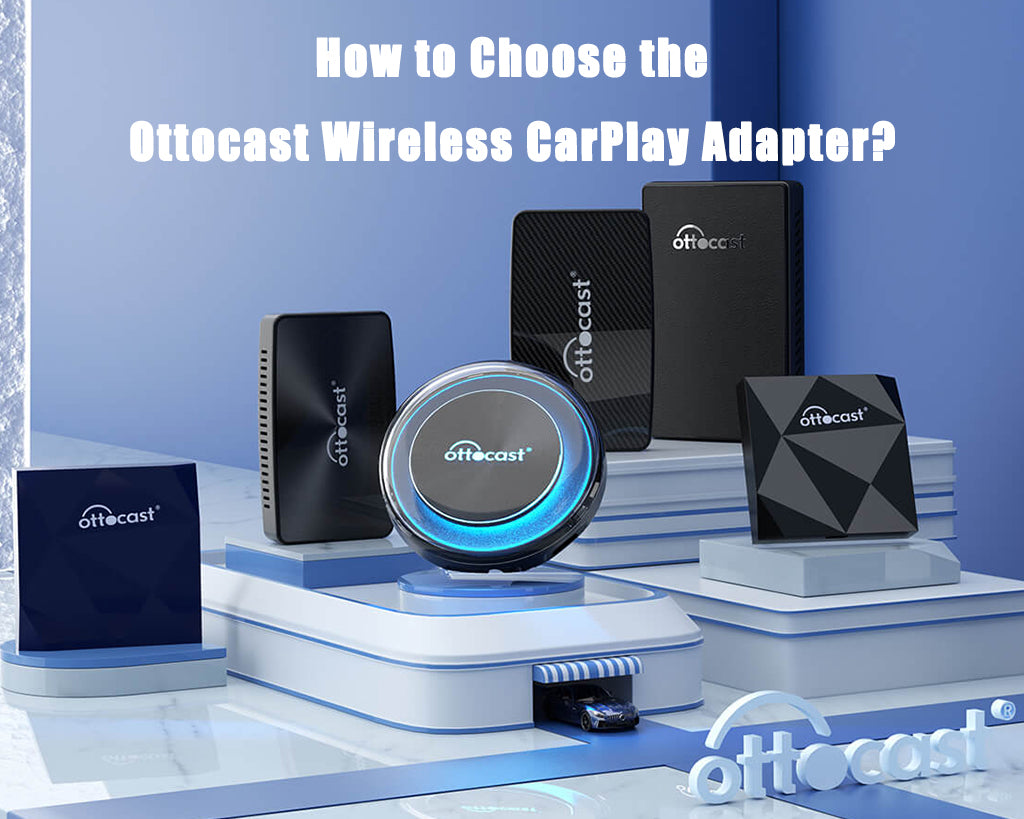
Updates for Android Auto are crucial to maintaining Android’s integrity. These may include internal improvements, bug patches, and compatibility upgrades for different automobile types. The user experience may run more smoothly and safely as a result of these upgrades. It is key to keep both Android Auto and your phone’s OS up to date to prevent disconnects. Otherwise, due to a bug, Android Auto keeps disconnecting. For users seeking a more flexible or enhanced connection beyond standard wired setups, third-party solutions like OttoCast offer dedicated wireless adapters. As a professional brand specializing in CarPlay and Android Auto connectivity, OttoCast provides a range of products designed to add wireless functionality or improve stability for various car models and head units. There is hope that both official updates and such dedicated hardware solutions will resolve persistent disconnecting issues.
Addressing Software-Related Disconnections
The following list of frequent Android Auto issues includes fixes:
Disconnects when there’s no more mobile signal: Reset the connection or make a stronger internet connection. Thus, start by checking the Android Auto app’s settings. and after that, confirm the Android Auto app’s settings. The next step is to confirm that location services are enabled and set up in the location settings for optimal precision. Next, search for typical infotainment issues, including a flickering screen or a broken voice command. Next, confirm that your phone, car, and apps are compatible. Finally, double-check that your phone, car, and apps are compatible.
The following are manual methods for updating the Android Auto app:
Open the Google Play Store.
Google Android Auto.
Select the Android Auto app.
In the event that an updated version is available, an Update button will show up.
Click the symbol for updates.
Watch for the update to download and install.
To improve Android Auto stability, disable battery optimization or other interfering features in your phone’s settings. Adjust display brightness or sleep settings to optimize battery life during Android Auto use, as these can impact both performance and battery life. Android Auto can have a noticeable effect on battery life, so taking steps to preserve it is important. Some devices, especially when using certain settings or features, offer longer battery life during extended drives. Enabling power-saving mode can also help extend usage during long trips.
Mobile apps that pose as reputable brands in order to get information are known as rogue apps. They have the ability to deceive consumers into giving attackers their financial information or to install malware or ransomware.
Here are some steps to fix disconnections:
Shut down the problematic application, if it’s not business-critical
Disconnect the device from the network if it is a rogue, unnecessary device
Overcoming Connectivity Issues
You can try the following to improve Android Auto’s Bluetooth connectivity:
Use Bluetooth to pair your phone and vehicle. The first time you connect wirelessly, your phone and automobile must be paired via Bluetooth. While you finish the setup, make sure that Bluetooth, Wi-Fi, and Location Services are activated on your phone for optimal performance. If you are using wireless Android Auto, a router is required for WiFi-based connections, as it manages the local network between your phone and the car’s head unit. Wireless connections offer the convenience of eliminating wires, making setup and daily use much easier compared to traditional wired connections.
You can use these procedures to verify the settings of your Android Auto app:
First, you have to launch the Settings application. Then access the linked devices. So then select your preferred connection. Next press the Android Auto button. And choose Always and Start Android automatically. Finally, turn on Android Auto when it’s locked. And turn on Wireless Android Auto.
USB 3.x or later cables are recommended by Android Auto for wired connections. Better connection reliability and quicker data transfer are offered by these connections. Better-quality cables with certifications like CE, FCC, and RoHS offer increased durability and dependability.
The following advice can help you maximize Android Auto:
Examine your relationships: Verify your Bluetooth, Wi-Fi, and USB connections one more time.
Choose certified cables: Make sure the USB cable you choose is certified to handle charging as well as data transfer.
Connect to the correct port: Make sure your phone is plugged into the USB port that WebLink is compatible with.
To turn off battery optimization, select Battery under Settings > Apps > Android Auto. Verify that the option for battery optimization is off. To clear the data and cache, select Storage under Settings > Apps > Android Auto.
When using Bluetooth, be aware that wireless earbuds connected to your phone can sometimes cause interference with Android Auto connectivity. Similarly, connecting a wireless keyboard via Bluetooth may impact the stability of your connection. For in-car audio, using a wireless speaker can enhance your experience with Android Auto. It’s important to be able to listen to music or navigation without interruptions for a seamless driving experience. In this context, means Bluetooth refers to the short-range wireless technology that enables direct device-to-device connections, such as between your phone and car.
Navigating User Errors
The following advice relates to using Android Auto:
Select the Settings option: In the lower-right corner of the screen, tap the app launcher symbol.
Customize: You may choose whether to take calls and messages while operating a vehicle.
Start Android Auto while locked: From the settings menu, activate the slider for Start Android Auto while locked.
To manage notifications, go to Apps under Settings on your phone. After swiping down, choose Special app access. After selecting Android Auto, tap Device & app notifications. Check to see whether Allow notification access is turned on.
Empty the cache: If you don’t, temporary files build up over time and interfere with the functionality of the program.
You can:
Turn your Android phone off and back on;
Navigate to Settings > Applications > Android Auto in order to empty the cache.
Select Storage and then delete Cache.
Modify the launcher: Search for “Android Auto” under Settings. To see all of the menu options, scroll down. To prioritize the apps you use most while driving, alter the order in which they are used using the customisable launcher.
Turn on developer mode: There are two ways to do this in Android Auto:
Look for “Android Auto” in the settings on your phone.
To access the Android Auto app, tap the settings.
Move down and press Version 10 many times.
Click OK
Press the three dots in the upper-right corner.
Select Developer options.
To improve device performance, consider removing unused account profiles from your phone or car system. Deleting a new account that is no longer needed can also help streamline your setup and reduce potential conflicts.
With the help of an app called Android Auto, you can use your Android phone to access information, communication, entertainment, and navigation on the screen of your vehicle. It’s standard in many automobiles and may be used for free. Among the features of Android Auto are the following:
Tools for navigation: Get turn-by-turn directions, a better route, an estimated time of arrival, and the remaining mileage.
Chat and call features: Use Google Assistant to stay in touch and place calls. Enjoy music, radio, audiobooks, and other audio entertainment.
Real-time traffic alerts: Stay informed about traffic conditions while driving.
Texting: Send and receive texts; Voicemail: Hear voicemails;
Tech support: Use tech support while operating a motor vehicle.
Most Android phones running Android 6.0 (Marshmallow) to Android 11 are compatible with Android Auto. Along with many aftermarket car radio manufacturers, it is compatible with the majority of OEMs. Among Android Auto’s drawbacks are its propensity for glitches and reliability as well as connection issues.
Android Auto can now summarize lengthy text messages that may be listened to while driving; • any phone signal dropouts will eat into your mobile phone contract;
Audio glitches;
App crashes;
Voice recognition issues.
You can create a seamless audio environment across devices by integrating Android Auto with wireless speakers and other in-car entertainment systems.
External Factors Affecting Connectivity
There are several ways in which your environment might impact your Android Auto connectivity:
Control by touch
When interacting with Android Auto using touch control, drivers may find themselves taking more time than is advised to keep their eyes off the road.
Geofencing
GPS technology and other data streams, such as WiFi and cellular, are used by geofencing to track cars as they enter and exit a designated geographic region. Your vehicle has to be Android Auto compliant or have an aftermarket unit installed in order to utilize Android Auto. Android Auto is not compatible with every car that has a USB port. You can find out if the Android Auto-compatible audio in your car is suitable.
The following requirements must be satisfied for an app to be listed on Google Play as an Android Auto app: visual or text adverts; image use; functionality; expected performance; and driver distraction. An Android smartphone may calculate data from OBDII codes from the engine ECU to monitor the vehicle’s health status in real-time, according to a ResearchGate study.
FAQs
Addressing Frequent Concerns: Why Does My Android Auto Keep Disconnecting?
A possible bug in your smartphone’s settings, namely related to the battery, launch configuration, or cache, might be the second explanation. A disconnect between your phone and the automobile is to be expected if your phone isn’t set up correctly to support the Android Auto framework. This troubleshooting guide aims to provide an answer helpful to users experiencing Android Auto disconnecting causes.
Can Updating Software Resolve Android Auto Disconnection Issues?
Yes, you may fix problems like automatic disconnections by upgrading the Android Auto software on your phone.
Resetting Android Auto: A Step-by-Step Guide
The procedures for resetting the Android Auto app are shown below.
Go into your Android phone’s settings app.
Select Advanced Features or Apps.
Look for the Android Auto App and choose it.
Select Cache and Storage.
Select ‘Clear Storage’ now.
Moreover, empty the cache.
Diagnosing USB Port Problems: Is Your Car’s Port Faulty?
There are several reasons why a car’s USB port might be broken, including:
Defects in software or hardware
A blown fuse
Issues with loose connections or cables; Device settings; Firmware
Damage to the USB port itself;
The build-up of debris in the port;
Outdated firmware
Compatibility Checklist: Is My Phone Suitable for Android Auto?
Any Android 11.0-equipped phone. An Android 10.0 smartphone from Samsung or Google. Android 9.0 on a Samsung Galaxy S8, Galaxy S8+, or Note 8.
Wireless Interference: A Hidden Culprit
Wireless interference is often an overlooked reason why Android Auto keeps disconnecting, especially as more drivers switch to wireless devices and Bluetooth technology for in-car connectivity. When your phone, head unit, or other devices are competing for the same wireless signals, you might notice dropped connections, laggy audio, or even trouble getting Android Auto to launch at all.
Common Sources of Wireless Interference
Many everyday devices can disrupt your Android Auto experience. Bluetooth devices, WiFi routers, and even household electronics like cordless phones or microwaves all operate on similar frequency bands. When these signals overlap, your phone and head unit may struggle to stay connected, leading to audio dropouts or sudden disconnections. Physical barriers—such as car doors, dashboards, or even your own laptop or computer—can also weaken the WiFi signal or Bluetooth connection between your phone and the infotainment system.
Electromagnetic interference (EMI) from appliances like refrigerators or fluorescent lights can further complicate things, especially if your car is parked near these sources or you’re driving through areas with lots of electronic signals. Even multiple devices connected to the same network can eat up bandwidth, slowing down data transfer and affecting Android Auto’s performance.
You may also like