


Can you use YouTube with android auto? I must say yes. Android Auto basically mirrors the phone’s screen on the dashboard of the car. Android Auto comes with built in features designed for safety, which limit certain functions like video playback while driving. It provides access to apps like navigation, music, and messaging. It supports both touch screens as well as button-controlled units. We can do the process using voice commands.
How to watch youtube on android auto? We can connect our Android smartphone to a car’s infotainment system. Bluetooth is often used to connect the phone to the car system for hands-free features and audio streaming. From there we can easily use our phone’s apps on the display. Anyone can manage their phone easily. The car system is designed to prioritize safety and may restrict some entertainment features for safety reasons. YouTube also offers entertainment and a safer driving experience at the same time. YouTube on Android Auto can be a pleasing experience for passengers. During the journey it helps them to relax. Also, on the car’s display both drivers and passengers can enjoy a huge range of music videos and podcasts, but video playback is only available when the vehicle is parked due to safety reasons. Additionally, without taking their hands off the wheel, drivers can listen to audio through the car’s sound system. There is an option that to avoid distracting we can only play films while the car is parked.
Please open Android Auto. To open YouTube on the car's display, you may need to use compatible apps or third-party solutions, but not all apps are supported on Android Auto.
Installing YouTube on Android Auto
We can access lots of functions from our phone on the screen. Functions can be accessed directly on the screen of Android Auto. Features like GPS and audio controls are the key factors. Android Auto enables owners of Android phones to access apps directly on the display. Third-party apps like AutoMate, Car Dashdroid, and AutoZen are popular. These applications allow us to control music and navigation. Android Auto’s main features we can say. These apps are available in the Google Play Store. They provide us with a different automobile and driving experience.
To install we have to Check Compatibility. Then try to update the Apps. You may need to download certain apps or updates to enable YouTube playback on Android Auto. Next connect Your Phone to your Car. Please open Android Auto. Then select Settings on the screen. Now Select YouTube.
The Google Play Store offers YouTube as an app for vehicles. Google predicts that it will be present in over 200 million vehicles. We can find a free multimedia software named CarStream. This mobile software helps us to view YouTube videos on the screen. Other apps, such as Fermata Auto, can also be used to access YouTube or similar services. Some solutions like CarStream do not require rooting the device, making them more accessible to most users. While CarStream is a third party software, some users may prefer hardware solutions, such as AI boxes or adapters, over third party software for enabling YouTube playback on Android Auto.
Using Third-Party Apps
We can use the following third-party Android Auto apps in place of YouTube:
Apps like Carstream or Fermata Auto also can use AA Mirror Plus, which is an open-source audio and video player. That helps users see YouTube without any advertisements. Video apps like YouTube and Netflix are becoming more available on Android Auto, but with restrictions—these features are typically limited to when the vehicle is parked, due to safety concerns and regional limitations.
To install third-party apps to Android Auto we can follow these steps:
At first go to the bottom of the screen then swipe upward. From there Choose Settings and search the app Android Auto. Select Android Auto Settings. Click on the Customized Launcher under General by swiping down. We can also add or remove apps from the launcher. To utilize the new apps, first you have to connect your phone to your car.
Though Not all Android apps work with Android Auto. Users should check compatibility and reviews to ensure the apps meet their needs. But most apps that do work with Android Auto are accessible through the standard mobile app.
So, for that first examine the app’s security procedures to make sure your information is secured. Look for features like frequent security upgrades, two-factor authentication. We have to examine the permissions that the app requests and requires for the app to run. Before you use the app, make sure you read its terms of service.
Compatible Devices
Android Auto works with a wide variety of devices, making it easy for drivers to enjoy their favorite apps and play YouTube videos on the go. Most modern cars, trucks, and SUVs from leading manufacturers come equipped with Android Auto support, and there are also many aftermarket stereos that can add this functionality to older vehicles. To ensure your car or stereo is compatible, you can visit the official Android Auto website or check with your vehicle’s manufacturer.
When it comes to your Android device, popular brands like Google, Samsung, and other major manufacturers offer phones that seamlessly connect to Android Auto. For the best experience, look for a device with a large, high-resolution screen and reliable connectivity options. This will help you watch YouTube videos, use third party apps, and access other essential apps like Google Maps and messaging tools without any hassle.
If your car’s system isn’t officially supported, you can still use third party apps like CarStream to play YouTube videos on Android Auto. These apps can help you unlock additional features and enjoy more flexibility, even on devices that aren’t listed as compatible. Always make sure your Android device is running the latest version of the operating system and Android Auto app to take advantage of new features and improved performance.
Watching YouTube on Android Auto
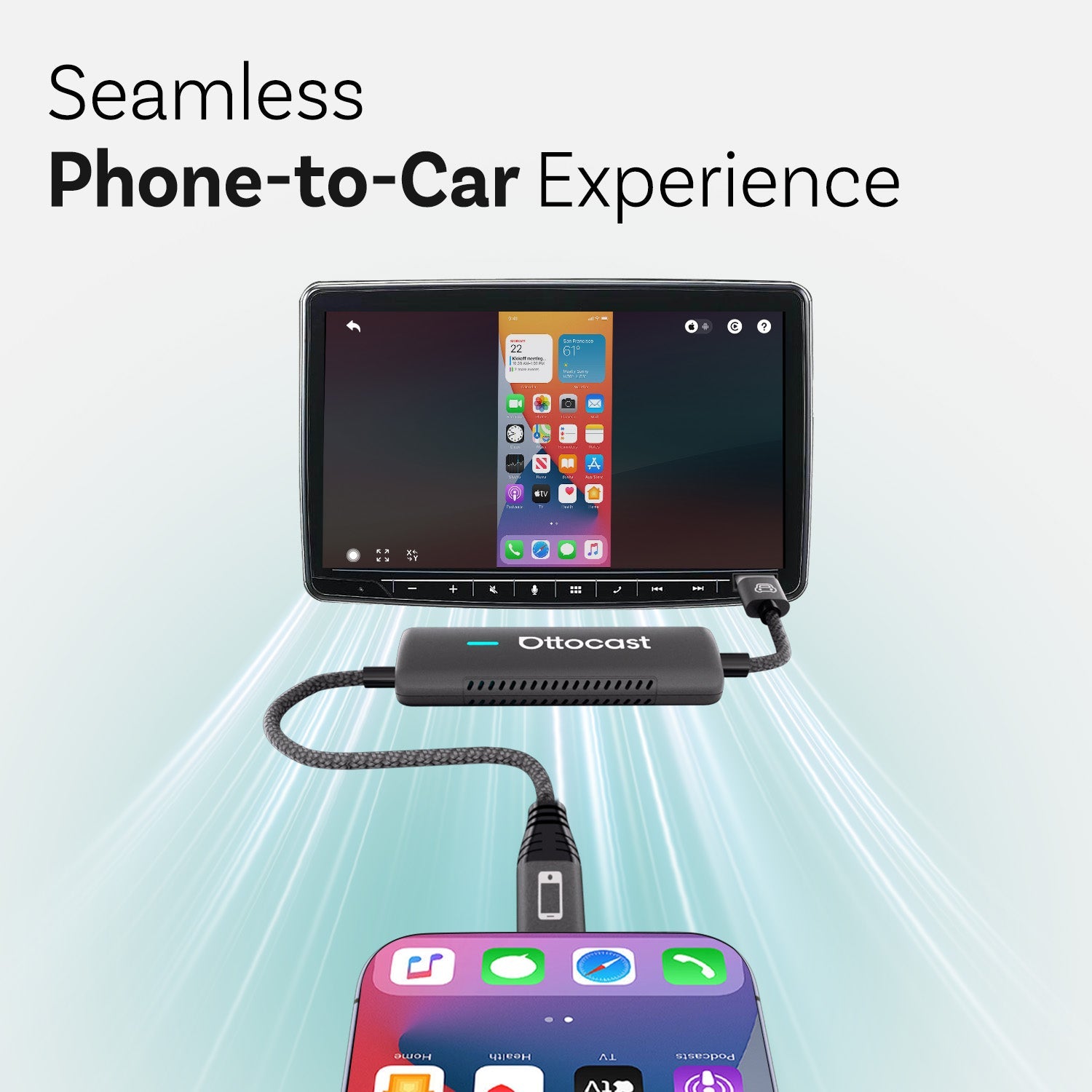
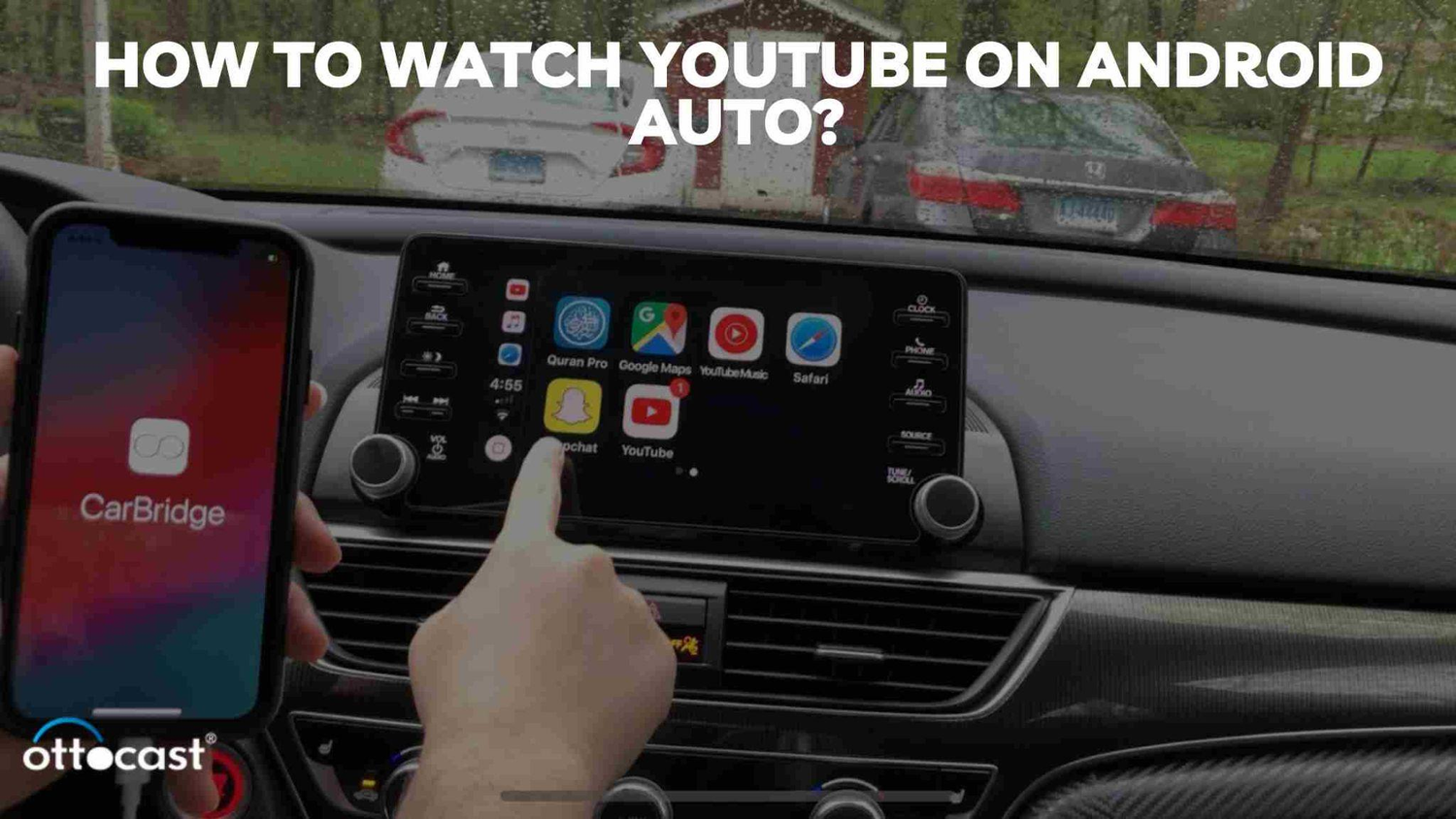
How to watch YouTube android auto? First, open the Android Auto app on your phone. You can install it from the Play Store. Then open the Settings app and look for Android Auto. Now connect your phone to your car’s infotainment system via a USB cable. Then the app should appear on Android Auto. Select the app and log into a YouTube account. Look for videos and play the video you like to play. You can play videos directly on the car's display when parked, and some users prefer to watch videos by mirroring their phone's screen to the infotainment system.
So how can we control the app on Android auto?
You can use keyboard shortcuts to control YouTube, such as:
To play and pause a video click spacebar or press K. M for mute and unmute a video. For zooming in use the Plus key. To zoom out choose Minus Key. F for exiting full-screen mode. To escape select exit full screen mode.
Depending on the app's capabilities, you can watch videos from YouTube and other sources while using Android Auto.
Playing Videos
So here we will discuss how to change the video quality settings for the YouTube app on Android:
First select Open the YouTube app. Then click on your profile photo. Go to the Settings. There you can find Video quality preferences and click. Choose a preset for both Wi-Fi and mobile network sections. Next, Select Higher picture quality for better results.
Car Screen Display
The car screen display is at the heart of the Android Auto experience, transforming your vehicle’s dashboard into a smart hub for navigation, communication, and entertainment. With Android Auto, you can access a range of apps directly on your car screen, including Google Maps for navigation, messaging apps for hands-free communication, and productivity apps to help you stay organized on the road.
To watch YouTube videos or stream content, third party apps like CarStream or Fermata Auto can be used to enable video playback on your car’s display. These apps allow you to watch YouTube and other videos right from your car screen, but it’s important to remember that video playback should only be used when the vehicle is parked to ensure safety and comply with local laws.
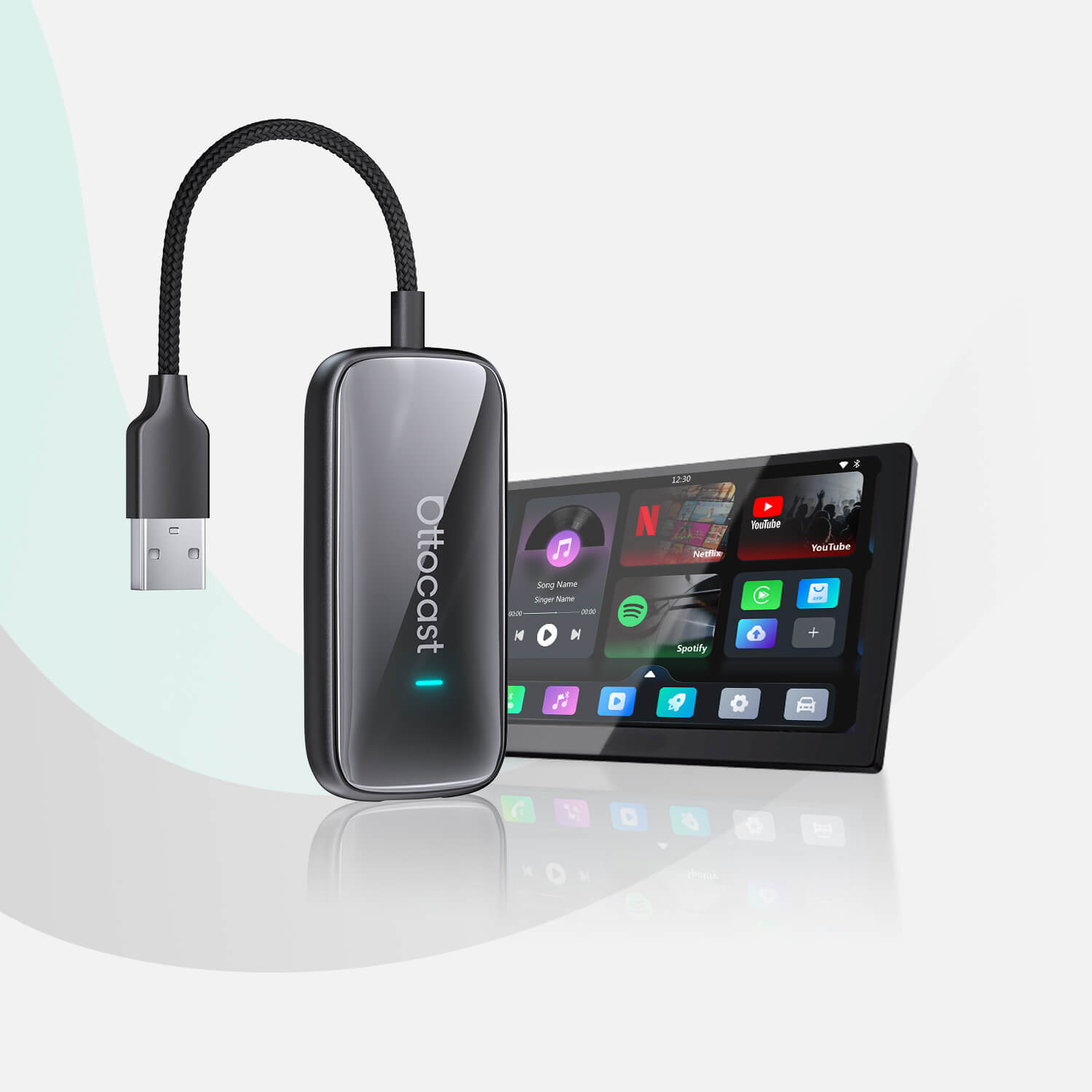
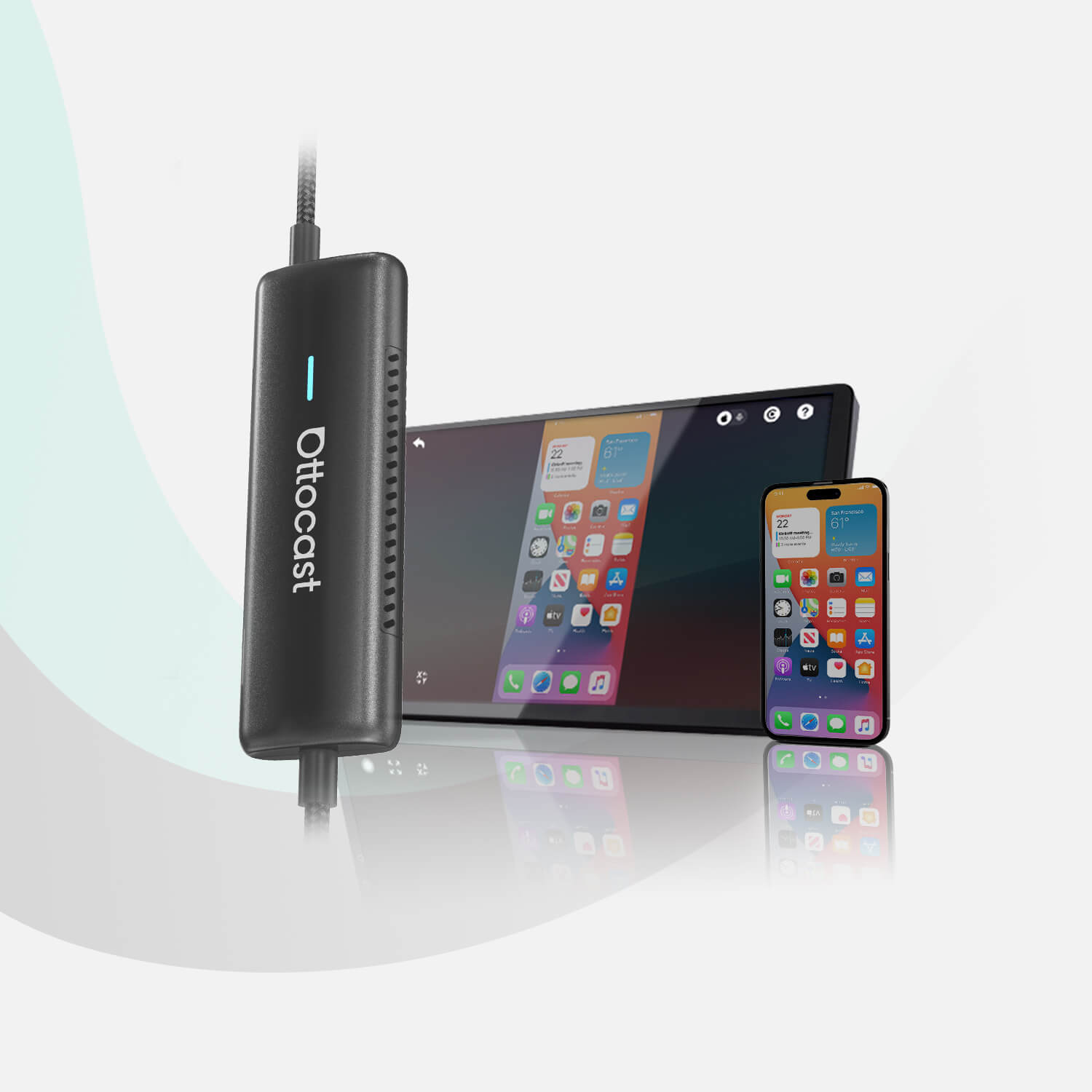
Connecting your phone to the car’s USB port is usually required to activate Android Auto and mirror your apps onto the car screen. Some vehicles offer built-in Android Auto support, while others may need an aftermarket stereo or a wireless adapter, such as those offered by Ottocast, to enable seamless connectivity. With voice commands, you can control your apps, play music videos, or get directions without taking your hands off the wheel, helping you stay focused on the road while enjoying the latest features and entertainment options that Android Auto has to offer.
Advanced Tips and Tricks
When utilizing Android Auto, we can use different voice commands to interact with our infotainment system. First say “Hey Google, find street parking on App” or “Play Music on YouTube Music”, we can get the result. Android Auto can also turn your car into a mobile office, allowing you to manage tasks and appointments right from the driver's seat.
We may speak with Google to control Android Auto in cars. Only those are compatible and eligible. For that, we can take these actions. First Select one of three options to work. For that, say “Hey Google” or choose the microphone or press and hold the voice command button. You can find it on your steering wheel. Hold it until you hear the beep sounds.
Android Auto supports many popular apps, making it easy to stay organized and entertained. For in-car entertainment, you can even play games on the car's display while parked, enhancing the overall experience for both drivers and passengers.
Enhancing Viewing Experience
You can select Do Not Disturb mode. To do that Use Quick Settings to quickly hide all the alerts. Then Combine daily push notifications from YouTube into a single notification. You can Turn off YouTube's vibrations and sounds at specific hours of the day. Though it can be a distraction. You can also block YouTube during study sessions. Set a timer to limit the amount of time you spend on YouTube during your session.
Troubleshooting Common Issues
To fix any short-term issues we have to restart the infotainment system in our car. We have to reinstall YouTube and Android Auto if needed. We can remove underlying software problems by clearing the cache or app data. Sometimes, an error may occur when connecting your phone to Android Auto, especially if you are using a computer to manage your device. In such cases, try restarting your computer or updating Windows to resolve the issue. If your YouTube isn’t accessible, you can find out if your car model is compatible with Android Auto or not. You can also visit the official YouTube and Android Auto pages for help. If your YouTube isn’t operational, you can clear the cache and data. To do that go to Settings then Apps, select YouTube and then Storage. Now select the Clear cache.
App Glitches
So, if your YouTube app for Android Auto is crashing then you can stop the app. For that you have to go to Settings, then Apps and pick the application now press quit. You can also delete the data and cache of the app. To do that you have to go to Settings, then Apps, click on Storage, and then select Clear Cache and Clear Data. Your login details will be deleted by doing this.
We also can do the restart for better results. To restart we have to hold down the Power button. Or we can update the app. We have to search for the update if there are any updates available or not. If the same thing happens again then verify the connectivity of your internet. Kindly check whether the internet is available or not.
Conclusion
Android Auto allows us to access and manage our preferred applications. That reduces distractions while we listen to audiobooks or check traffic alerts. Without checking the phone, we can also send and receive messages and make calls. Also checking our voicemails is a lot easier. We also can manage our car with Android Auto & GPS. Android Auto helps drivers get from point A to point B efficiently with its navigation features. It also supports specialty apps to help users locate charging stations for electric vehicles, making it especially useful for EV owners. We may watch YouTube content while driving safely. It enables us to view a range and at the same time video content on the car’s display. We can find their podcasts and music videos as well. Using the car’s audio system one can also listen to audio without compromising their focus from the road. If you are looking for new features or updates, be sure to check the release date for the latest version.
FAQs
Can I watch YouTube on Android Auto directly?
Yes, you can watch YouTube on Android Auto. If your infotainment system supports it, you can enjoy a seamless entertainment experience. For step-by-step instructions or troubleshooting, you can find more information in the related post or by following the provided link.
Is it legal to watch YouTube on Android Auto while driving?
No, while driving, watching YouTube on Android Auto is prohibited due to safety concerns and distraction. In most countries, it is illegal to use a phone while driving a car.
How can I resolve audio sync issues with YouTube on Android Auto?
To resolve audio sync issues, first restart your phone or tablet. Then go to the menu, click on settings, select video settings, and choose audio. Click on audio delay to configure different delays per audio. If you need detailed guidance, refer to the relevant post or check the link for troubleshooting steps.
What are the best third-party apps for watching YouTube on Android Auto?
The best third-party apps that can be used to watch YouTube on Android Auto are CarTube, LetsView, WheelPal, Fermata, and CarStream. Some wireless adapters, such as the CARLUEX LINK dongle, also offer quick and reliable connectivity for streaming video in your car.
How do I update Android Auto to the latest version?
First, select the Google Play Store app. Then click on Android Auto. Check if there is an update available. Next, select the update option and install the most recent version. For more details, see the related post or follow the provided link.
You may also like