

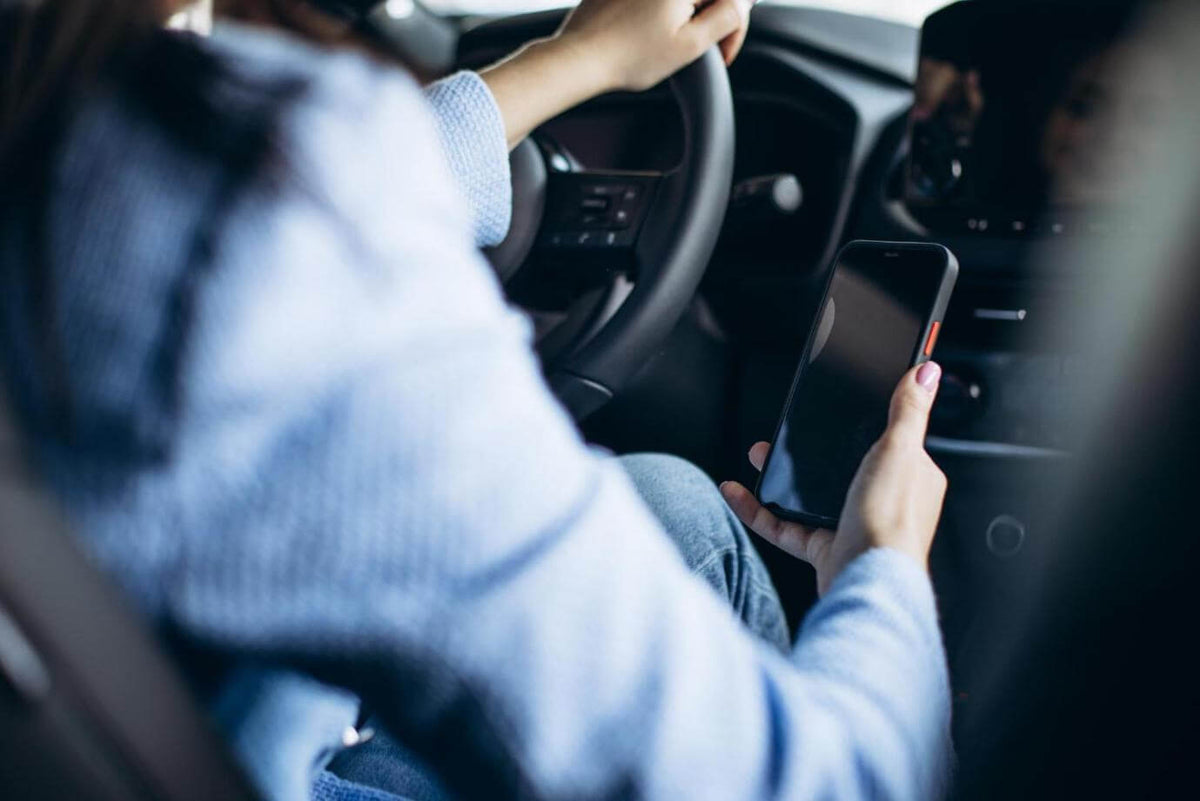

Picture this common morning scenario.
You step into the driver’s seat of your shared family SUV. You then press the start button and prepare to enter your daily commute destination into your navigation.
Then, just as you put the car in drive mode, the central infotainment screen shifts away from your map. Instead, it launches music streaming from your partner’s iPhone that’s nested comfortably in the passenger seat, or worse, it’s inside on the kitchen counter that happens to be near the garage.
Shared vehicles are pretty common. They are a standard reality for couples, families, carpoolers, and so on, and most aftermarket wireless CarPlay and Android Auto adapters are designed around an assumption that each car has one driver.Now, that’s a problem, right?
What happens when two previously paired smartphones enter the car simultaneously?
Well, the system struggles to identify who is actually driving.
If you want to end these “daily cabin connection wars,” you need to move beyond basic single-device dongles. What you need is dual-protocol firmware, intelligent device mapping, and quick-switch controls.
That way, all multi-driver households can have stress-free connectivity every time they step into the car.
That’s why Ottocast is here to help.
What Are the Mechanics of Multi-Device Friction?

Let’s begin with a simple explanation. We’ll help you understand why shared cars experience these “connection conflicts,” and to do that, we need to look at how wireless CarPlay and Android Auto adapters establish their “handshakes.”
The first thing you need to learn about is the two-stage handshake architecture.
Wireless adapters don’t maintain an active 24/7 Wi-Fi connection with your smartphone. Instead, they rely on a two-step connection protocol.
The first step is Bluetooth discovery. When the car powers on, the adapter broadcasts a Bluetooth signal to detect nearby paired phones.Then, we have the Wi-Fi data tunnel. Once Bluetooth confirms the pairing, the adapter instructs the smartphone to connect to its 5.8GHz Wi-Fi network.This high-speed Wi-Fi channel streams display graphics, touch inputs, and hi-fi audio to the dashboard.
But then, we fall into a trap. We’ll call it the “First-to-Respond Trap.”
When two paired phones enter the car at the exact same time, both devices attempt to complete that initial Bluetooth handshake simultaneously. Now, standard single-channel adapters lock onto whichever smartphone completes the Bluetooth handshake a millisecond faster.
There are many factors here, like background app updates or phone battery state. These often determine which phone connects first, and the result is unpredictable pairing that simply ignores who is sitting in the driver’s seat.
Another thing to discuss is the cross-platform software barrier.
All this friction goes to the next level when one partner uses an iPhone (Apple CarPlay) while the other uses an Android device (Android Auto).
Lower-end conversion dongles simply lack the dual-chip processing needed to switch between Apple and Google software environments smoothly.
Forcing the adapter to switch protocols in the middle of your drive can, more often than not, cause system freezes, audio stuttering, or even, worst of all, full system reboots.
What Are the Traditional Workarounds (And Why They Fail Drivers)?
You can always invest in some purpose-built dual-protocol hardware, but before you do that, you can try some of these manual workarounds. However, spoiler alert: each of these comes with its own set of drawbacks.
First, you can try disabling Bluetooth or Wi-Fi.
You can try asking the passenger to turn off their Bluetooth before they enter the car. This allows the driver’s phone to connect cleanly. However, this breaks the other party’s smartwatch sync, disconnects their wireless earbuds, and requires remembering to turn Bluetooth back on after every trip. Inconvenient, right?
Then, you can try toggling Airplane Mode.
Swiping into Airplane Mode temporarily cuts connection pings, but it abruptly drops ongoing phone calls or cellular streaming data.
Also, there’s always deleting and re-pairing your devices.
But this is just not the way to go. Removing and re-linking phone profiles before every drive completely defeats the convenience of having a wireless setup, right?
Lastly, we have the option of unplugging the adapter.
Physically pulling the dongle from the console USB port forces a hard reboot. However, over time, this creates physical wear on your car’s USB ports, and you just don’t want that.
Solution Architecture: How Ottocast Dual-Protocol Firmware Resolves Conflicts
We’re here to say goodbye to these daily cabin connection arguments.
Ottocast engineered smart dual-protocol adapters designed specifically for multi-driver households. They combine multi-channel hardware architecture with refined user interface firmware. Here’s some more information about the best features.

The First Feature Is The “Interactive On-Screen Boot Menu.”
So, basically, instead of blindly connecting to whichever smartphone pings first, modern Ottocast firmware introduces an interactive boot selection screen directly on your car’s dashboard.
When you turn the car on, the display presents a clean user interface listing all previously paired devices. All you need to do is simply tap your profile name on the touchscreen to get an immediate 5.8GHz connection. This bypasses passenger phone signals entirely.
The Second Feature is Physical One-Touch Hardware Switching.
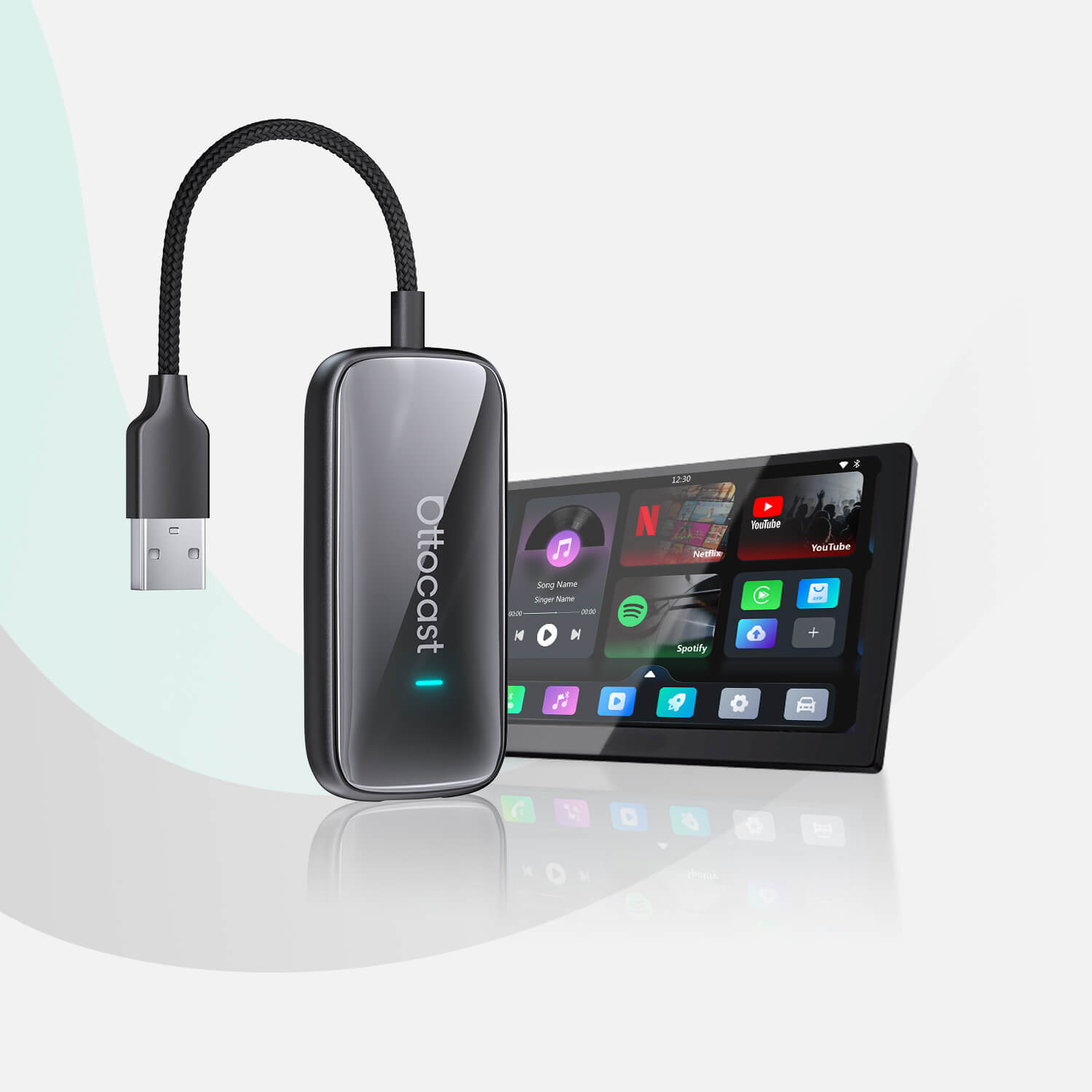
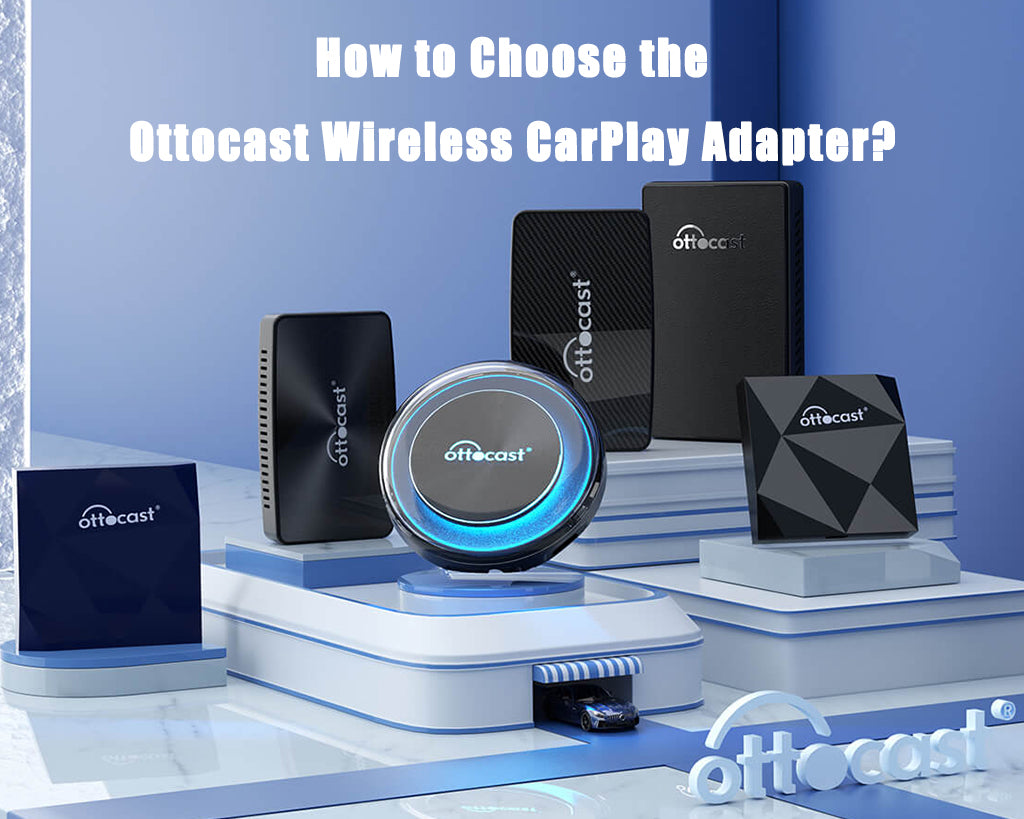
For situations where a passenger needs to share navigation or play music mid-drive, the Ottocast Play2Video series provides a dedicated physical quick-switch button on the adapter casing.
Toggling this button instantly disconnects Phone A and shifts control over to Phone B without requiring drivers to navigate complex phone settings or pull over.
The Third Feature is Cross-Platform 2-in-1 Versatility.
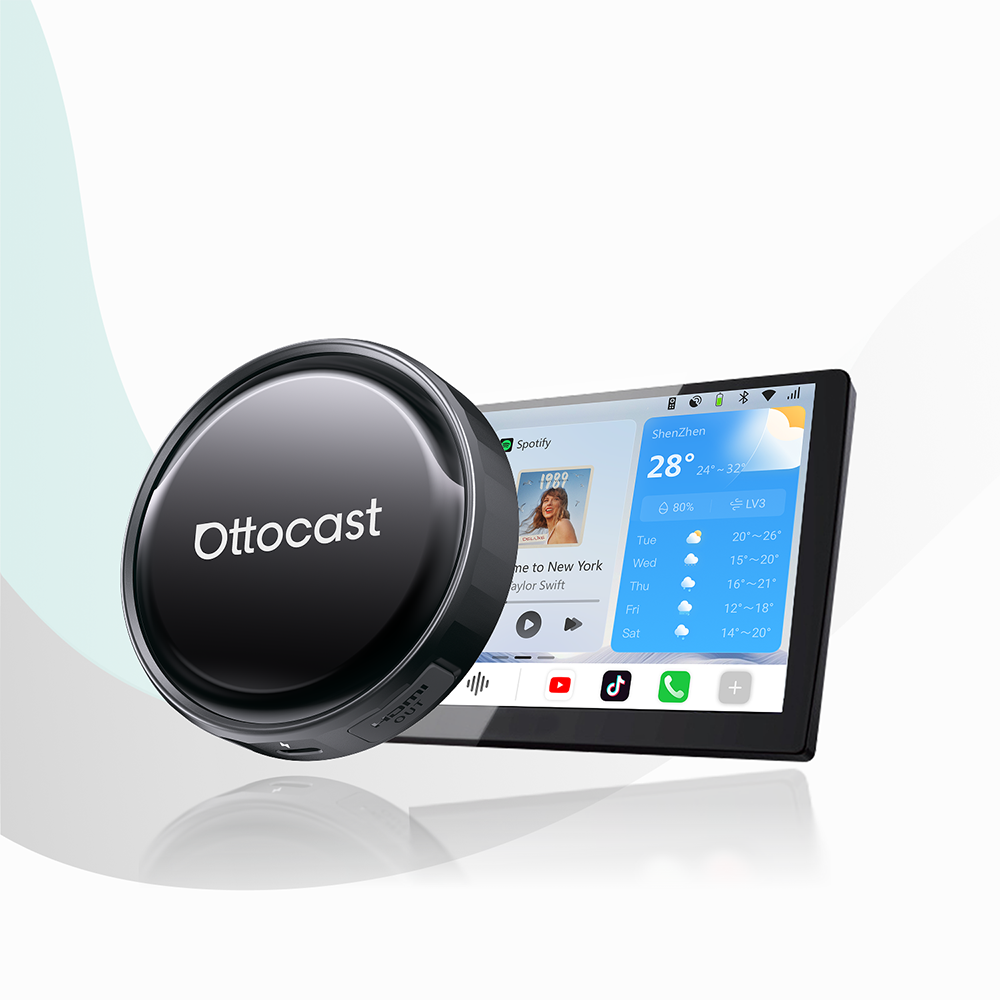
Take the OttoAibox P3 Pro. It acts as a dual-channel host, converting factory wired CarPlay ports into a universal receiver for both Wireless CarPlay and Wireless Android Auto. It’s powered by a dual-core ARM processor, and it handles cross-platform protocol handshakes like a charm.
Whether an iPhone user or an Android user takes the wheel, the P3 Pro adjusts to the required operating protocol in seconds with zero system crashes.
The Fourth Feature Is Priority Mapping via Web Interface and the Ottopilot App.
If you want to go for total automation, you can access the adapter’s internal web configuration panel (by typing 192.168.1.1 into a mobile browser) or use the Ottopilot companion app.
Inside the settings menu, you can designate a permanent “Primary Driver” device. When both devices enter the vehicle, the adapter will automatically prioritize the primary phone, assigning the secondary phone to guest status.
Quick. Simple. Easy.
Here’s a Quick Step-by-Step Priority Configuration and Quick-Switch Guide
If you want to configure your Ottocast adapter for multi-driver support, you should know that it takes less than three minutes, and you can choose from three distinct methods.
The first method is the interactive boot menu approach.
Go to your adapter’s web settings menu (192.168.1.1) while connected to Wi-Fi. Set the auto-connect countdown timer to 5 or 10 seconds. When starting your car, the dashboard display will hold on the boot menu for your selected time window, giving you time to tap your name on the screen. If untouched, it defaults to the last connected device.
The second method is hardware one-touch switching.
Keep both Driver A (iPhone) and Driver B (Android) paired to the Play2Video. To transfer control to the passenger or alternate driver mid-trip, press the physical switch button located on the side of the Play2Video unit. The adapter will safely close the active CarPlay or Android Auto session and launch the secondary phone profile within seconds.
The third method is primary driver priority ranking.
Open the device management list within the settings menu. Drag and set Driver A’s Smartphone to Priority 1 and Driver B’s Smartphone to Priority 2. Whenever Driver A is in the car, the system will always lock onto Driver A's phone first. Driver B will only connect automatically when Driver A is absent.
Conclusion
So, what have we learned after reading all this?
One thing’s for sure. Sharing a car should not, by any means, mean that you have to compromise in terms of in-car connectivity. There will be no more arguing over whose phone controls the dashboard.
All you have to do is select a wireless adapter that’s engineered for multi-device environments. All shared-car households can enjoy instant, predictable pairing whenever they unlock and enter their car.
Take control of your cabin’s wireless connections. Explore the full multi-device adapter lineup at the official Ottocast Store today.
Do you want to see how easy it is to set up dual-protocol wireless connections in your car?
Of course, you do. Just watch this OTTOCAST Wireless Android Auto Adapter Overview. This video walks you through the 2-in-1 setup process, demonstrating how the adapter seamlessly converts wired factory systems to wireless for both iPhones and Android devices.
Featured Products