


![How to Use YouTube on Android Auto: Complete Guide [100% Work]](http://www.ottocast.com/cdn/shop/articles/9.jpg?v=1766129786&width=1500)

Introduction to YouTube on Android Auto
Android Auto enables its users to link their mobile phones with the car's system, projecting apps onto the car's display and car's screen to control navigation, communication, and entertainment using voice commands. YouTube is one of the most preferred apps by many. Some users also ask whether this application can be used on Android Auto. Even though no video content has been approved for playing on screen while driving, there is a way to do it. The present article explains in detail how to use YouTube on Android Auto, what is worth being aware of in terms of limitations, what other programs you might use instead, and what settings you should apply to get the most out of YouTube Music while on the road.
Understanding Android Auto’s Media Capabilities
Making use of Windows media center features contributes to a better-than-average vehicle entertainment experience in that it provides consolidation of entertainment from phone devices to the vehicle. Android Auto projects compatible apps onto the car's display and car's screen, with the car's system acting as the interface that manages these functions. It is convenient for users who enjoy listening to music and audio podcasts while driving them. However, there is a restriction on streaming video content. But video absence does not mean video with audio content cannot be present. In this chapter, we will analyze the video and audio content capabilities of automotive Android Auto – the usability of applications, quality of sound, plus the ability to integrate YouTube Music into the car multimedia system.
Is YouTube Supported on Android Auto?
On official sources, it is stated that it is better not to use YouTube in Android Auto as there are concerns while streaming video and driving. The reason behind this restriction is that Google places an emphasis on safety above all else within its system and does not want drivers to view such types of apps while driving. Nevertheless, despite the mentioned restrictions, YouTube’s audio version YouTube Music is suitable for use with Android Auto. For those willing to break these rules, there are reliable apps and hacks available, however, they have disadvantages, including warranty voids. This section goes into the safety concerns and why YouTube on Android Auto is disabled by Google.
Workarounds for Watching YouTube on Android Auto
There are however certain caveats to this, as Android Auto does not facilitate YouTube streaming, several ways exist to tackle this shortcoming. Some methods require rooting your device, while others do not. You may need to grant necessary permissions and enable the ability to install apps from unknown sources. Apps like Carchat or specific pullable APKs circumvent the restrictions imposed by Android Auto and work with YouTube. Certain people resort to rendering their phones without restrictions or ‘jailbroken’ to use these apps but this practice is laden with dangers such as weakened device software. These things can pose a danger to the safety of the driver. In this section, we’ll cover the positive and negative aspects of YouTube for Android Auto with guidelines on how it can be applied to Android Auto using third-party software.
Best Apps to Stream YouTube on Android Auto
Smartphones come with native limitations but that has not stopped people from working YouTube video streaming into Android Auto using certain third-party applications. There are different ways to stream YouTube videos through other applications than through the YouTube app in Android Auto. Third party apps like CarStream do not require rooting and can work properly if all necessary permissions are granted. Apps such as CarStream and Fermata Auto allow Android Auto users to watch YouTube videos. Also, some media players such as VLC and Plex allow YouTube videos to be played but the content is not streamed directly. Among the mainstream players in the world of music streaming services apps is YouTube Music which is stated as the default app connected to Android Auto providing, music and so on. In this segment, let’s point out the best applications to interact with YouTube while driving and increasing the video-watching experience.
Step-by-Step Guide to Set Up YouTube on Android Auto
For using Youtube on Android Auto, you will have to rely on apps like CarStream or use apks that are against the policy of Google. First, download the app on your Android, preferably from the Play Store when possible. After that, you should go to the settings menu of Android Auto and enable the install access for unknown sources to install apps. Connect your phone to the car's USB port for a wired setup, or ensure a stable bluetooth connection for wireless use. Open Android Auto on the car's display after installation. Open the third party app and then open YouTube through the app. Note that this process is somewhat dangerous, and it will also void your phone warranty. Some solutions involve mirroring your phone's screen onto the car's display. This section contains detailed instructions regarding the addition of YouTube to Android Auto along with some troubleshooting of the basic problems of the installation. Ottocast products relieve these concerns by integrating Youtube, and other apps in-vehicle applications efficiently and lawfully, which is safer and more effective than any other means directly or otherwise related to it.
1.Play2Video Pro Wireless CarPlay/ Android Auto All-in-one Adapter:
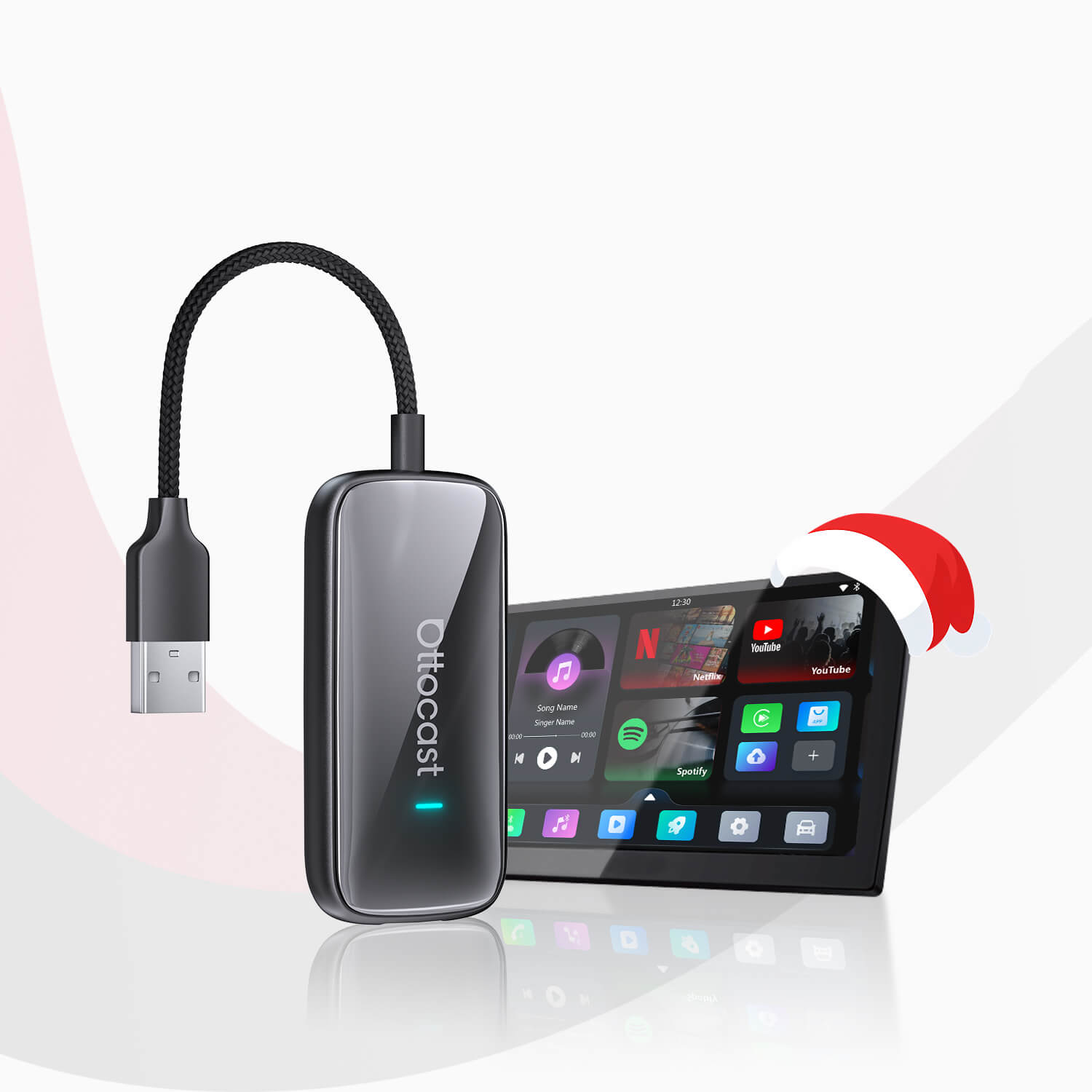
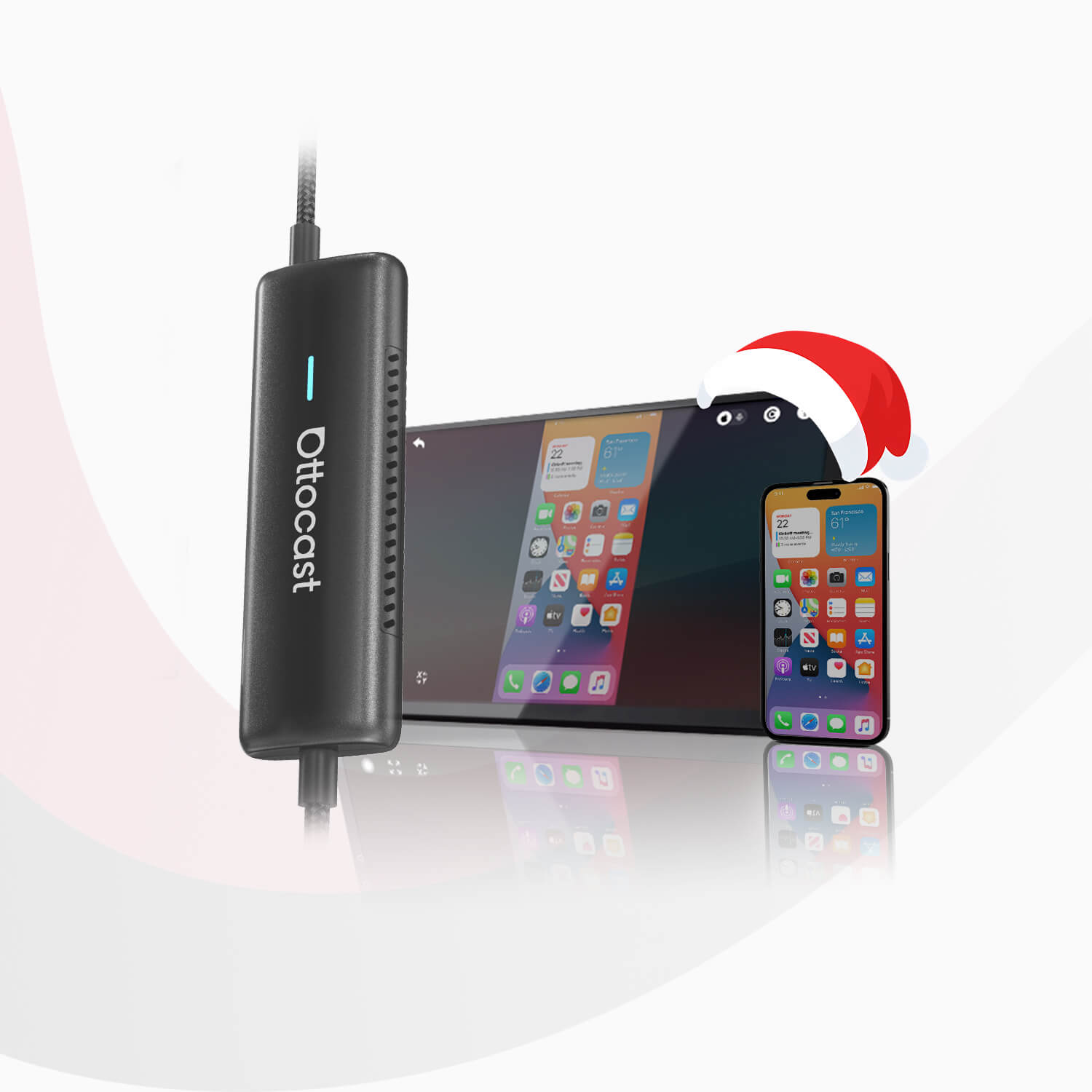
In this case, the Play2 Video Pro makes it even easier to watch YouTube in the car incorporating an Android 12 operating system. Pre-installed apps like YouTube, Netflix, or IPTV take care of your content needs right from your device without any additional downloads. Its USB plug-and-play feature allows the user to skip the installation process and also, the adapter self-picks up as soon as you get into the car, making accessing YouTube or other media very quick and easy. No matter what, this is ideal for persons who want speed as well as the comfort of in-car entertainment. Some AI boxes allow you to install YouTube directly and play videos in full screen on the car's screen, letting you enjoy videos and play videos directly on the car's display.
2.OttoAibox P3 CarPlay AI Box
What more is, the OttoAibox P3 CarPlay AI Box is a world beater when it comes to watching Youtube in a car. As a result of this combination, you will be experiencing a lag-free operation whereby videos load within the shortest possible time due to the 8GB RAM and 128GB Storage. The fact that FOTA online updates are provided means that you will be utilizing the latest features, and its three-in-one concept provides for changing between the different interfaces from accessing YouTube on whichever device you want. Worth noting is that for those who are keener on efficiency and speed, this has to be among the best picks. You can use the steering wheel button to control playback or activate voice assistants with compatible devices.
Using Voice Control for YouTube on Android Auto
Out of these, the best way to have control over YouTube Music on the Android Auto application is via Google Assistant. You only need to say: “Hey Google, play [song/playlist] on YouTube Music” and the application will play the requested content. This hands-free operation ensures that the drivers enjoy their favorite content without taking their eyes off the road even for a fraction of a second. Further, videos can also be searched for similar to how they are done on phones by giving voice commands through playlists. In this section, we’ll discuss improving YouTube Music use with voice controls available in Android Auto.
Audio-Only Mode for YouTube on Android Auto
It keeps the app’s simple nature where users can also access the rich library of YouTube content sans the video – audio only. Most especially this is of advantage to Android Auto users because it enables the use of podcasts, music, and other audio content without taking the drivers’ attention off the road. Conversion to and from videos and audio is easy and it is possible to set YouTube Music as the default media app on Android Auto. This section of the report will highlight the benefits of audio-only mode to enhance comfort and safety inside a car.
YouTube Music on Android Auto
YouTube Music is also usable in an automobile by linking it to Android Auto and thus a driver can stream all his music, playlists, and podcasts from the car’s infotainment system. So to create YouTube Music, it is necessary to download this app, connect it to Android Auto, and enjoy millions of tracks and playlists. With curated playlists and personalized suggestions, YouTube Music makes the use of in-vehicle entertainment more exciting. This section of the report tries to put forth the significant attributes of the application, YouTube Music on Android Auto and how it stands as different from other music streaming applications.
YouTube on Android Auto in Different Car Models
Many car makes and models can integrate with Android Auto functionality, although such functionality is performed better on some than on others. More often than not, new models have better integration and work more cohesively than older versions, although older cars need Android Auto support via software patches or extra infotainment systems. In this part, we are going to list the best cars for Android auto usage, how to face the compatibility issues, and the limitations of improving oscilloscopes for watching YouTube on your car’s media system in the Hyundai i10.
Comparing YouTube on Android Auto vs Apple CarPlay
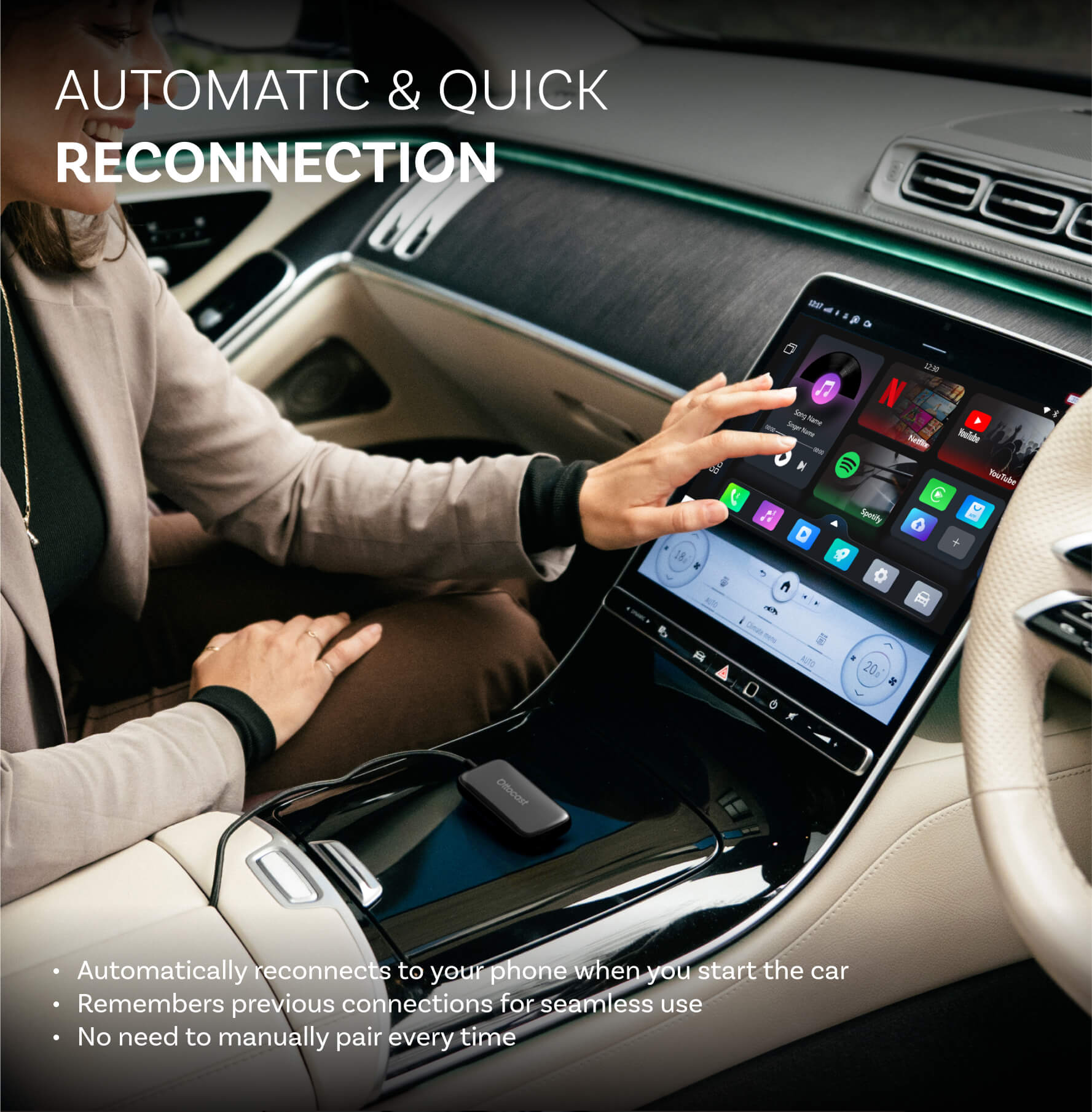
Taking over the analyst’s task would include finding differences between Mercedes and Toyota’s smartphone integration offered by Android Auto and Apple Carplay. The difference is that while neither Carplay nor Android Auto makes any allowances for uploading or viewing YouTube videos neither does Apple utilize third-party apps but wraps everything up in one platform. In this part, we are going to have a comparison of YouTube and how it links with Android Auto and how it also links with Carplay and whether the two comparisons offer any worth or differences when it comes to viewing YouTube on the road. In the hardware solutions space, OEM wired CarPlay refers to factory-installed systems, while wired Apple CarPlay and wireless Apple CarPlay are available in many vehicles. Devices like Ottocast can convert wired connections to wireless, enhancing convenience and allowing for seamless integration.
Common Issues with YouTube on Android Auto
Although it’s very useful, there are challenges when playing YouTube through Android Auto. Typical problems consist of cloud lag, connection or network delays, and playback issues, especially with non-native applications. Connectivity issues can occur with wireless connections, but having a paired phone helps with automatic reconnection. These worries may arise from weak internet connections or lack of compatibility between the apps and the ring. This section explores options that may assist in troubleshooting the playback problems, improving the quality of the video and making watching YouTube and streaming in general on Android Auto more pleasant.
YouTube on Android Auto for Long Road Trips
YouTube can make long trips much more interesting thanks to the variety of content available from music to educational videos and podcasts. Video streaming is out of the question, but if one plans to go on a road trip, YouTube music comes in handy because the listeners aren’t distracted by images. This section will tell you how to make the most out of YouTube with regards to long rides, which include the best playlists, and channels along with guidelines for streaming without interruptions to ensure that the whole trip is fun without any diversion or distractions.
Parental Controls for YouTube on Android Auto
To enable a safe and family-oriented viewing experience, YouTube on Android Auto can be limited through the parent’s protection option. Android Auto is an excellent tool, for parents, that prevents kids from watching things not suitable for viewing, by tracking and restricting ill-suited content. Taking advantage of YouTube parental control in combination with Android safety features makes it relatively easy to keep the children safe in the vehicle. This section balances the understanding of voluntarily submitting to these apps as well as whether or not they can be avoided when it comes to the use of YouTube on Android Auto.
There are some positives and negatives in using YouTube on Android Auto. Despite video streaming being considered a security risk, there are ways out of the situation and third-party apps that help stream YouTube videos even while on the move. All the same, these are not without disadvantages: they may void warranties and carry other risks. In that regard, YouTube Music is the most appropriate substitute for Android Auto out of which the motorists listen to the audio content without being distracted at the wheel. There can be even greater enhancements made to how the YouTube app works with Android Auto in the future of in-vehicle entertainment.
Is it safe to watch YouTube on Android Auto while driving?
No, it’s not safe to operate Android Auto and watch YouTube videos while driving. Watching videos can be problematic for drivers; such activities lead to loss of attention which could later put the drivers at risk of accidents. For these reasons, Android Auto is a very supportive application for the users, and hence it only supports audio apps apart from that, viewing videos while driving is also thoroughly discouraged so that the driver’s concentration is not diverted.
What apps allow YouTube streaming on Android Auto?
Thanks to third-party applications like CarStream and Fermata Auto you are now able to enjoy streaming YouTube within Android Auto. These apps provide a way to get around the restrictions imposed by Google and allow the user to watch videos on the dashboard display. Unfortunately, using such apps may endanger your health and safety and nullify your product warranty.
How can I listen to YouTube audio without video on Android Auto?
You can also make use of YouTube Music in which YouTube audio with no video can be listened to in Android Auto. YouTube Music offers a vast catalog of playlists, songs and podcasts intended for a listening session while driving which is the safest way to enjoy audio content in a car.
What are the risks of installing third-party apps for YouTube on Android Auto?
There are various dangers associated with adding unsupported apps for YouTube in Android Auto, like warranty voiding, software malfunctioning, and security issues among others. Furthermore, operating these applications when one is driving is dangerous as it permits watching of video content which may take the driver’s attention away from the road.
Will Android Auto officially support YouTube in the future?
Currently, there is no project targeting integrating YouTube video streaming in Android Auto, and this is not only because of technical reasons but also safety concerns. Although neither Google Play nor the Android Auto API supports video apps, which drivers could reasonably embrace because their attention will not be needed and they will not have any distraction from such applications, the most popular is audio-only.
Introduction to Android Auto and YouTube
Android Auto is a widely used infotainment system that brings a user-friendly interface to your car’s display, allowing you to access essential apps like Google Maps, YouTube Music, and Amazon Music while on the road. Designed with safety in mind, Android Auto helps drivers stay connected without taking their eyes off the road. However, Google restricts video apps—including YouTube—on Android Auto for safety reasons, preventing drivers from watching YouTube videos while driving. Despite these limitations, many users look for ways to play YouTube videos or watch YouTube on their car’s screen. Solutions like Android Auto Apps Downloader (AAAD) and third-party apps such as CarStream have emerged, enabling users to install video apps and enjoy YouTube content when the vehicle is parked. While these workarounds can enhance your in-car entertainment experience, it’s important to use them responsibly and always prioritize safety.
Setting Up Android Auto
Getting started with Android Auto is straightforward, but it’s important to ensure your Android phone and car’s system are compatible. Most devices running Android 6.0 (Marshmallow) or later can use Android Auto. Begin by installing the Android Auto app on your phone if it’s not already pre-installed. To connect, simply use a USB cable to link your Android phone to your car’s USB port, or opt for a wireless connection if your vehicle supports it. Once connected, the Android Auto interface will appear on your car’s display, giving you access to navigation, music, and communication apps in a streamlined, intuitive interface. Always follow your car manufacturer’s instructions for setup, and make sure both your phone and the car’s system are updated to the latest version for the best experience.
Enabling YouTube Playback
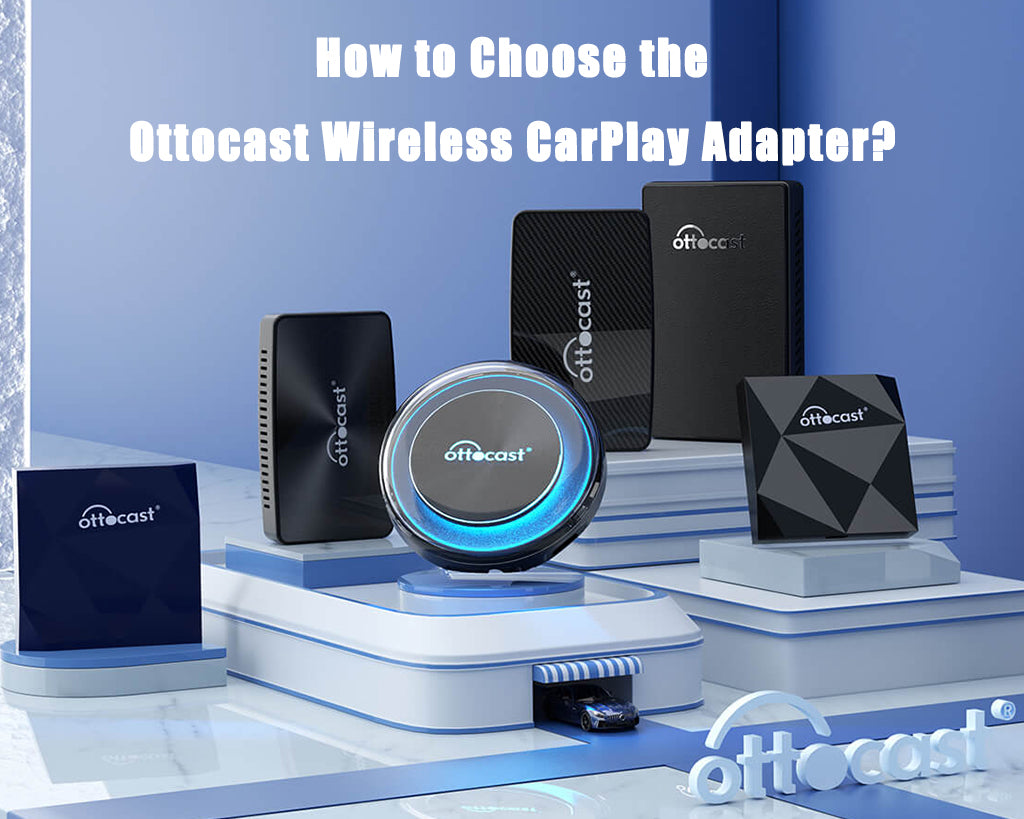
Since Google does not officially support video playback on Android Auto, enabling YouTube videos requires a bit of creativity. One of the most popular solutions is using third-party apps like CarStream, which can be installed through tools such as the Android Auto Apps Downloader (AAAD). CarStream allows you to play YouTube videos directly on your car’s screen, but compatibility can vary depending on your device and Android version. Another innovative option is to use a wireless CarPlay adapter, such as the Ottocast Wireless CarPlay Adapter, which can convert a factory wired CarPlay system into a wireless one and enable video playback, including YouTube. These adapters are especially useful for those with wired CarPlay systems who want to enjoy seamless video playback and access to their favorite apps. Always remember to use these features only when the vehicle is safely parked, as video playback while driving is restricted for safety reasons.
Wireless Connectivity Options
Wireless connectivity has transformed the way drivers interact with Android Auto, eliminating the need for a USB cable and making it easier to connect your phone to your car’s system. To use wireless Android Auto, your car must support wireless connections, and your phone should have Bluetooth and Wi-Fi capabilities. For vehicles that only support wired connections, a wireless CarPlay adapter—like the Play2Video Pro or Ottocast’s wireless carplay adapter—can bridge the gap, converting factory wired CarPlay or Android Auto systems into wireless ones. These adapters offer a plug-and-play experience, allowing you to access apps, stream YouTube, and enjoy your favorite content on your car’s screen without the clutter of cables. Simply connect your phone via Bluetooth, and the adapter will handle the rest, providing a smooth, user-friendly interface for all your in-car entertainment needs.
Comparison to Apple CarPlay
Apple CarPlay and Android Auto are both leading infotainment systems, each offering a user-friendly interface to access essential apps on your car’s display. Apple CarPlay is known for its seamless integration with iOS devices and straightforward user experience, supporting apps like Apple Maps, Apple Music, and Podcasts. However, it tends to be more restrictive, with limited support for third-party apps and no official way to watch YouTube videos. In contrast, Android Auto provides more flexibility, supporting a wider range of apps such as Google Maps and YouTube Music, and offering more customization options for users. While both systems prioritize safety and ease of use, Android Auto’s openness allows for additional features—like third-party video apps—though these often require extra steps to enable. Ultimately, the choice between Android Auto and Apple CarPlay depends on your device, preferred apps, and the level of customization you desire for your in-car entertainment experience.
You may also like