

 Łączność w samochodzie jest dziś zupełnie inna niż kilka lat temu. Jeśli czytasz ten post w 2026 roku (lub później), prawdopodobnie wiesz, że cała prostota plug-and-play, która była popularna w 2024 roku, przekształciła się w coś znacznie bardziej zaawansowanego. Dziś mamy ekosystem wysokiej rozdzielczości.
Jeśli chodzi o korzystanie z ekosystemu Android w samochodzie, wraz z przejściem na interfejsy 4K i podejście Gemini-first, naprawdę potrzebujesz stabilnego połączenia. Jeśli Android Auto nie działa prawidłowo i znajdujesz się w sytuacji, gdy standardowe naprawy, na które liczyłeś dwa lata temu, już nie działają, nie martw się.
Zespół Ottocast przygotował dla Ciebie ten przewodnik. Mamy nadzieję, że stanie się on Twoim podstawowym narzędziem diagnostycznym EZ. Omówimy wszystko, od błędów natywnej jednostki głównej po najnowsze wskazówki optymalizacyjne.
Pierwsi reagujący: 5 niezbędnych napraw na 2026 rok
 Przede wszystkim zacznijmy od podstaw. Oto pięć wskazówek, które powinny pomóc rozwiązać (w przybliżeniu) 85% problemów z połączeniem Android Auto w 2026 roku.
Zaktualizuj do standardu kabli 2026
Twoje stare kable USB 2.0 lub nawet wczesne USB 3.0 już nie wystarczą. Są one najprawdopodobniej przyczyną problemów z opóźnieniami. Potrzebujesz nowoczesnych kabli USB 3.2 Gen 2 z ekranowaniem foliowym. Jeśli zauważysz migotanie ekranu lub zacinanie się mapy, prawdopodobnie to kabel jest winny, ponieważ nie radzi sobie z przepustowością danych wymaganą do renderowania 4K.
Cykl zasilania 2.0 (zasada 3 sekund)
Nowoczesne modele pojazdów, takie jak najnowszy RAV4, zmieniły sposób zarządzania zasilaniem jednostki głównej. Włączanie i wyłączanie jej nie zawsze czyści pamięć podręczną.
Profesjonalna wskazówka: Naciśnij i przytrzymaj fizyczny przycisk zasilania na jednostce głównej samochodu przez dokładnie 3 sekundy, aby wymusić twardy reset systemu infotainment bez wpływu na ustawienia jazdy.
Audyt pamięci podręcznej i danych
Zdarzają się sytuacje, gdy połączenie między telefonem a samochodem po prostu zawodzi. W takim przypadku możesz mieć do czynienia z uszkodzonym procesem działającym w tle.
Oto jak możesz spróbować to naprawić.
- Przejdź do Ustawienia > Aplikacje > Android Auto.
- Następnie powinieneś poszukać procesu com.google.android.projection.gearhead.
- Na koniec wyczyść zarówno pamięć podręczną, jak i dane. To wymusi na systemie odbudowanie profilu połączenia od podstaw.
Rozwiązywanie konfliktów między podwójną aplikacją a Bezpiecznym Folderem
Najnowsze aktualizacje zabezpieczeń Androida wprowadziły Bezpieczne Foldery i Sklonowane Aplikacje (dla użytkowników posiadających podwójne konta WhatsApp lub społecznościowe), co może wywołać Błąd 16.
Naprawa: Jeśli masz aktywne sklonowane aplikacje, system może mieć problem z rozpoznaniem, który użytkownik próbuje połączyć się z samochodem. Możesz po prostu wyłączyć te sklonowane aplikacje lub przenieść je poza Secure Folder. To powinno rozwiązać problem.
Aktualizacja sprawdzania uprawnień
Do połączenia telefonu z samochodem potrzebujesz dwóch rodzajów uprawnień. Upewnij się, że Nearby Devices i Physical Activity są włączone. Jeśli nie, telefon będzie ignorował samochód, co może być bardzo frustrujące.
Rozwiązywanie problemów z bezprzewodowością: stabilność w erze 5,8 GHz
 Bezprzewodowa wygoda to standard, ale jest pewien problem. Fale radiowe są bardziej zatłoczone niż kiedykolwiek. Jeśli jedziesz przez gęsto zaludnione obszary miejskie, przeciążenie pasma 5 GHz jest bardzo prawdopodobną przyczyną opóźnień map i nagłych rozłączeń.
Sprawdź poniższą listę.
- Zacznijmy od problemu zakłóceń. Nasycenie sygnału w obszarach miejskich może zakłócać komunikację między telefonem a bezprzewodowym adapterem.
- Nie martw się! Mamy profesjonalną wskazówkę (blokowanie kanałów). Możesz rozwiązać problem, blokując adapter, np. Ottocast U2-AIR Pro lub NanoAI, na kanałach nie-DFS (konkretnie kanały 36-48). Zapobiegnie to przełączaniu się systemu na częstotliwości zarezerwowane dla radaru, co może powodować natychmiastowe rozłączenia.
- Warto też wspomnieć o optymalizacji czasu uruchamiania. Jeśli system działa wolno podczas startu, sprawdź aktualizację oprogramowania. W 2026 roku zoptymalizowano procedury nawiązywania połączeń, skracając czas uruchamiania z 30 do poniżej 15 sekund, dzięki czemu nawigacja jest gotowa, zanim jeszcze wyjedziesz z podjazdu.
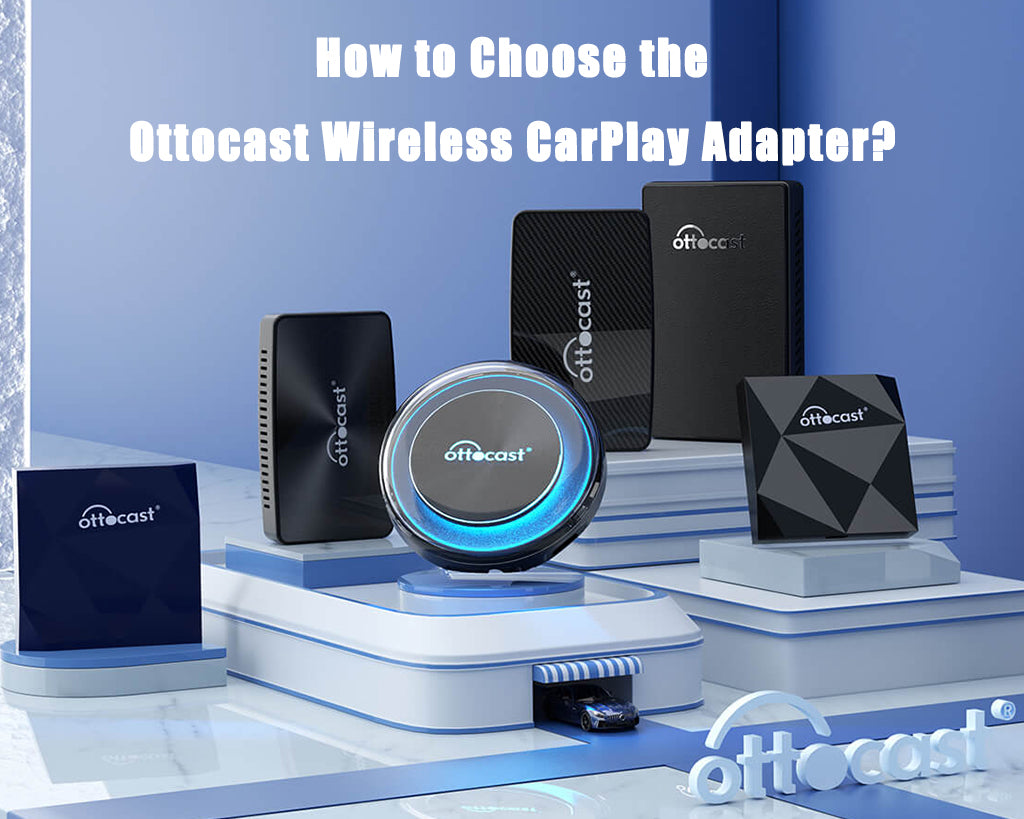
Jeśli preferujesz podejście „ustaw i zapomnij”, wypróbuj Ottocast Mini Cube. Jego kompaktowa konstrukcja kryje potężny chipset, który potrafi utrzymać połączenia o niskim opóźnieniu nawet w najbardziej zatłoczonych centrach miast.
Sekcja rozwiązywania problemów Gemini AI (aktualizacja na 2026)
 Android Auto w 2026 roku całkowicie przeszedł na ekosystem oparty na Gemini. Tak, to tworzy znacznie mądrzejszego współpilota, ale wiąże się też z kilkoma specyficznymi błędami AI.
Najczęstszym jest tzw. błąd Classic Assistant. Niektórzy użytkownicy korzystający z wersji 16.7 zauważyli, że Gemini niespodziewanie wraca do Classic Assistant po aktualizacji. Aby to naprawić, wystarczy ponownie zsynchronizować ustawienia aplikacji Google i zarządzać podsumowaniami wiadomości AI.
To usprawni sposób, w jaki Gemini przetwarza przychodzące wiadomości, zmniejszając lokalne obciążenie przetwarzania i przywracając nowoczesny interfejs.
Istnieje również problem z opóźnieniem poleceń głosowych. Pojawi się błąd „Ups, coś poszło nie tak”, co zwykle jest wynikiem wysokich opóźnień w środowisku bezprzewodowym.
Rozwiązanie zakłóceń 5 GHz wspomnianych powyżej lub aktualizacja firmware’u adaptera to zazwyczaj najszybszy sposób na naprawę opóźnień w poleceniach głosowych.
Zaawansowana analiza kodów błędów (Lista główna)
 Oczywiście niektórzy napotkają sytuacje, w których standardowe resetowanie zawiedzie, a w takich przypadkach Android Auto często zwraca konkretny kod błędu. Kody te stały się bardziej opisowe, ale w 2026 roku nadal wymagają specyficznych technicznych korekt, aby je rozwiązać.
Błąd komunikacji 8 (niepowodzenie nawiązania połączenia)
Ten błąd często występuje, gdy występuje rozjazd czasowy między smartfonem a jednostką główną samochodu. Protokoły szyfrowania 2026 wymagają idealnej synchronizacji, więc musisz upewnić się, że zegary telefonu i samochodu są zsynchronizowane z czasem GPS, aby umożliwić udane nawiązanie połączenia.
Błąd komunikacji 22 (trasowanie VPN/blokera reklam)
Nowoczesne oprogramowanie zabezpieczające często zakłóca lokalny tunel bezprzewodowy tworzony przez Android Auto. Wystarczy skonfigurować Split Tunneling w ustawieniach VPN lub blokera reklam. Pozwoli to ruchowi Android Auto ominąć zaszyfrowany tunel.
Błąd „Samochód nie wykryty”
To częsta awaria komunikacji firmware’u, występująca w wielu modelach samochodów wydanych między 2024 a 2026 rokiem. Oprogramowanie OEM samochodu nie rozpoznaje sygnału telefonu. Najlepszym sposobem na rozwiązanie problemu jest aktualizacja firmware’u jednostki głównej lub adaptera Ottocast.
Rozwiązywanie problemów specyficznych dla EV: integracja NACS i Map
 Pojazdy elektryczne (w skrócie EV) dominują na rynku w 2026 roku. Rozwiązywanie problemów rozszerzyło się o integrację danych ładowania i baterii.
Możesz napotkać dwa typy błędów.
Pierwszym jest błąd „Brakujące stacje ładowania”. Jeśli Google Maps nie wyświetla pobliskich ładowarek, często jest to spowodowane błędem synchronizacji danych w ustawieniach EV aplikacji. Odświeżenie profilu pojazdu w aplikacji Google Maps zazwyczaj rozwiązuje problem.
Drugim jest NACS i przygotowanie baterii. Standardy NACS na 2026 rok stanowią, że twój bezprzewodowy adapter musi obsługiwać przekazywanie danych o przygotowaniu baterii. Bez tego twój pojazd elektryczny nie może przygotować baterii do szybkiego ładowania podczas nawigacji do stacji.
Mamy dla Ciebie profesjonalną wskazówkę! Najnowsze adaptery Ottocast są zaprojektowane do obsługi tych złożonych strumieni danych, a Twój samochód będzie gotowy na Supercharge w momencie przyjazdu.
Konserwacja sprzętu: dbanie o zdrowie adapterów
 Z biegiem czasu rośnie ilość danych przesyłanych przez połączenie bezprzewodowe. Mapy HD 4K i przetwarzanie AI w czasie rzeczywistym mogą przeciążać sprzęt. Dlatego potrzebna jest regularna konserwacja.
Zacznijmy od zarządzania termicznego.
Wysokie wymagania dotyczące przesyłu danych oprogramowania 2026 mogą powodować ograniczenia adaptera. Jeśli zauważysz nagły spadek wydajności po godzinie jazdy, dotknij adaptera i sprawdź, czy nie jest zbyt gorący. Aby tego uniknąć, umieść adapter w dobrze wentylowanym miejscu i unikaj zamkniętych konsol środkowych, aby zapobiec termicznemu wyłączeniu.
A teraz przejdźmy do cyklu życia oprogramowania układowego.
Nie każdy błąd da się rozwiązać przez ustawienia telefonu. Jeśli napotkasz poważne błędy systemowe, aplikacja Ottopilot oferuje jednorazowe poprawki oprogramowania układowego zaprojektowane specjalnie, by ominąć lokalne ograniczenia oprogramowania. Regularne aktualizacje przez aplikację zapewnią kompatybilność sprzętu z najnowszymi aktualizacjami Android Gearhead.
Porównanie: kiedy naprawiać, a kiedy wymieniać
| Rozwiązanie | Najlepsze dla | Dlaczego warto zaktualizować w 2026 roku? |
|---|---|---|
| Starsze jednostki główne (z ery 2022) | Kierowcy korzystający z fabrycznie zainstalowanych systemów, którzy wolą połączenie przewodowe lub natywne doświadczenie. | Sprzęt z 2022 roku często nie ma mocy obliczeniowej potrzebnej do obsługi wymagań projekcji 4K w 2026 roku. |
| Dedykowany system operacyjny (P3 Pro / NanoAI) | Zaawansowani użytkownicy, którzy chcą uruchamiać aplikacje (takie jak YouTube czy Netflix) bezpośrednio na ekranie samochodu. | Omija 90% błędów po stronie telefonu, używając dedykowanego wewnętrznego systemu operacyjnego zamiast "uścisku dłoni". |
| Ottocast Mini Cube | Dla dojeżdżających, którzy szukają dyskretnego, szybkiego połączenia bezprzewodowego do codziennego użytku. | Optymalizowane pod ekosystem 2026 z funkcją "Instant Connect" i opóźnieniem poniżej 180 ms. |
Podsumowanie: Zabezpieczenie połączenia na przyszłość
Jak wyjaśniliśmy, utrzymanie idealnego połączenia w 2026 roku wymaga połączenia odpowiedniego sprzętu i zaktualizowanych nawyków cyfrowych. Jeśli masz dość rozwiązywania problemów i chcesz sprzętowego rozwiązania, które wyprzedza trendy, zapoznaj się z pełną ofertą produktów tutaj, na Ottocast.
Aby uzyskać więcej informacji i ciekawych wskazówek dotyczących Android Auto i CarPlay, koniecznie sprawdź nasz blog.
Może Ci się również spodobać