


Modern drivers expect everything in their car to work perfectly and seamlessly, and they want their smartphones to connect in an instant. Instead of having to deal with navigation, calls, music, and a bunch of other things from a phone screen, modern cars let you use built-in platforms designed for a safer and completely hands-free experience.
Enter Android Auto, Google's solution for in-car connectivity. It transforms your car's built-in display into a very simplified, yet safe and driver-friendly version of your Android phone, allowing you to access essential apps with zero distractions.
What you get is real-time navigation, voice-controlled messaging, automatic music playback, and so much more. In essence, Android Auto brings your digital life directly into your driver's seat safely.
Today, we will talk about how it works, what features you can expect, how to set it up, and how to enhance your experience using wireless Android Auto adapters.
Easy Explanation: What Is Android Auto?

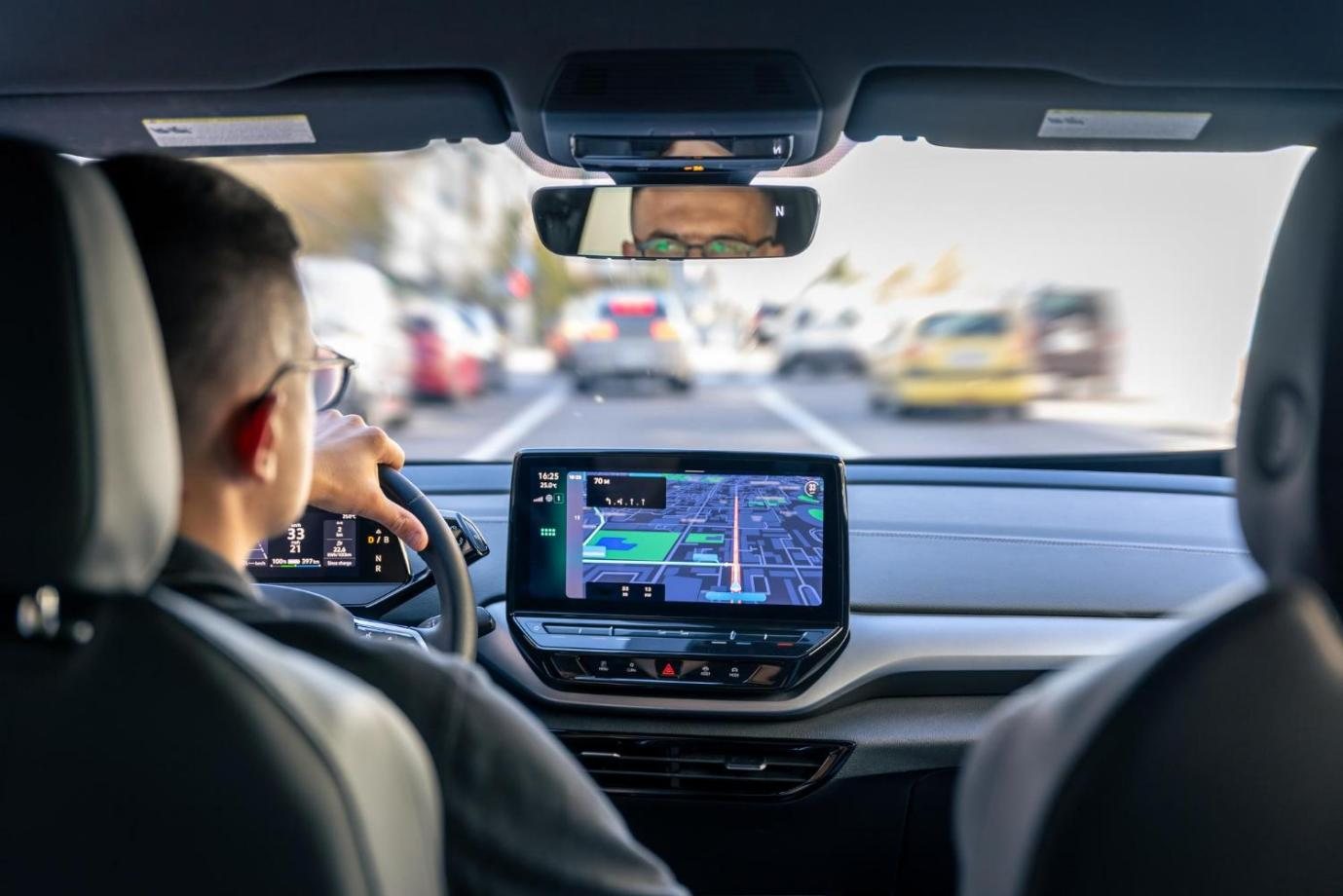
Android Auto is the official Google platform that lets you connect your Android smartphone to the infotainment system you have in your car. First, you establish a connection, and then the system mirrors the apps you need when driving onto your car's display using a simplified interface that's specifically designed for safe driving.
So, instead of having to meddle with your phone while you're on the road, you can now control everything through the car's touchscreen, or you can use steering wheel buttons and voice commands. You get easy navigation, safe communication, and quick music control.
Again, safety is a core part of Android Auto. Expect large icons, minimal menus, and voice interactions. Also, you will get only essential notifications, and your messages will be read to you out loud so you can focus on the road.
To find out everything about the platform, check the Android Auto official overview.
How Android Auto Works
At this point, you should know that Android Auto connects your phone to your car in one of two ways.
- You can connect using a USB cable (wired).
- Or, you can connect wirelessly through Bluetooth and Wi-Fi.
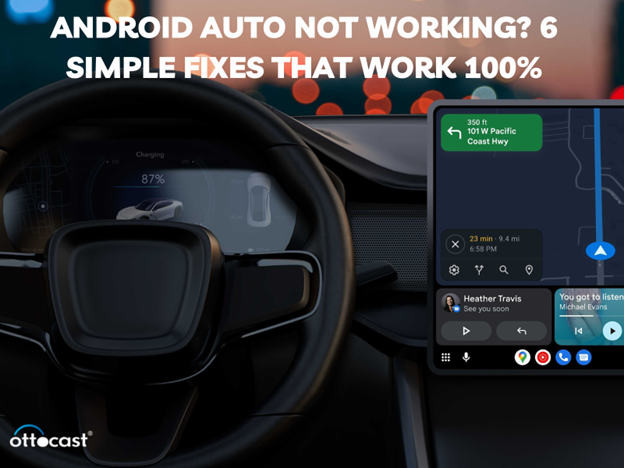
In both cases, once you're connected, the system launches automatically, and you get a simplified home screen optimized for driving. You'll see your navigation, recently used apps, media controls, and it's all designed for quick access.
Everything is powered by Google Assistant. For example, you can say commands like:
- “Navigate me home.”
- “Send a message to Sarah.”
- “Play my driving playlist.”
Voice controls allow you to manage most functions without ever touching the screen.
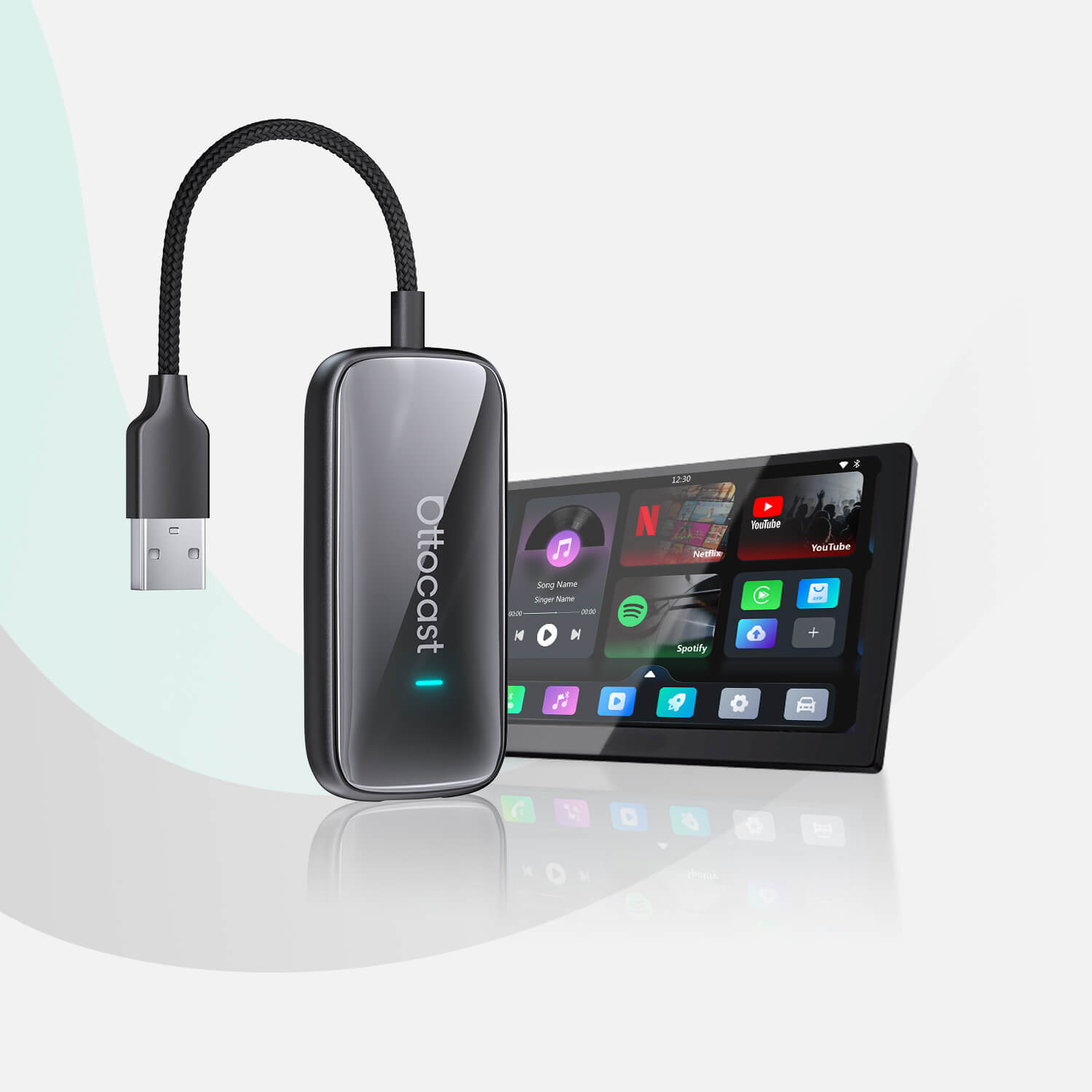
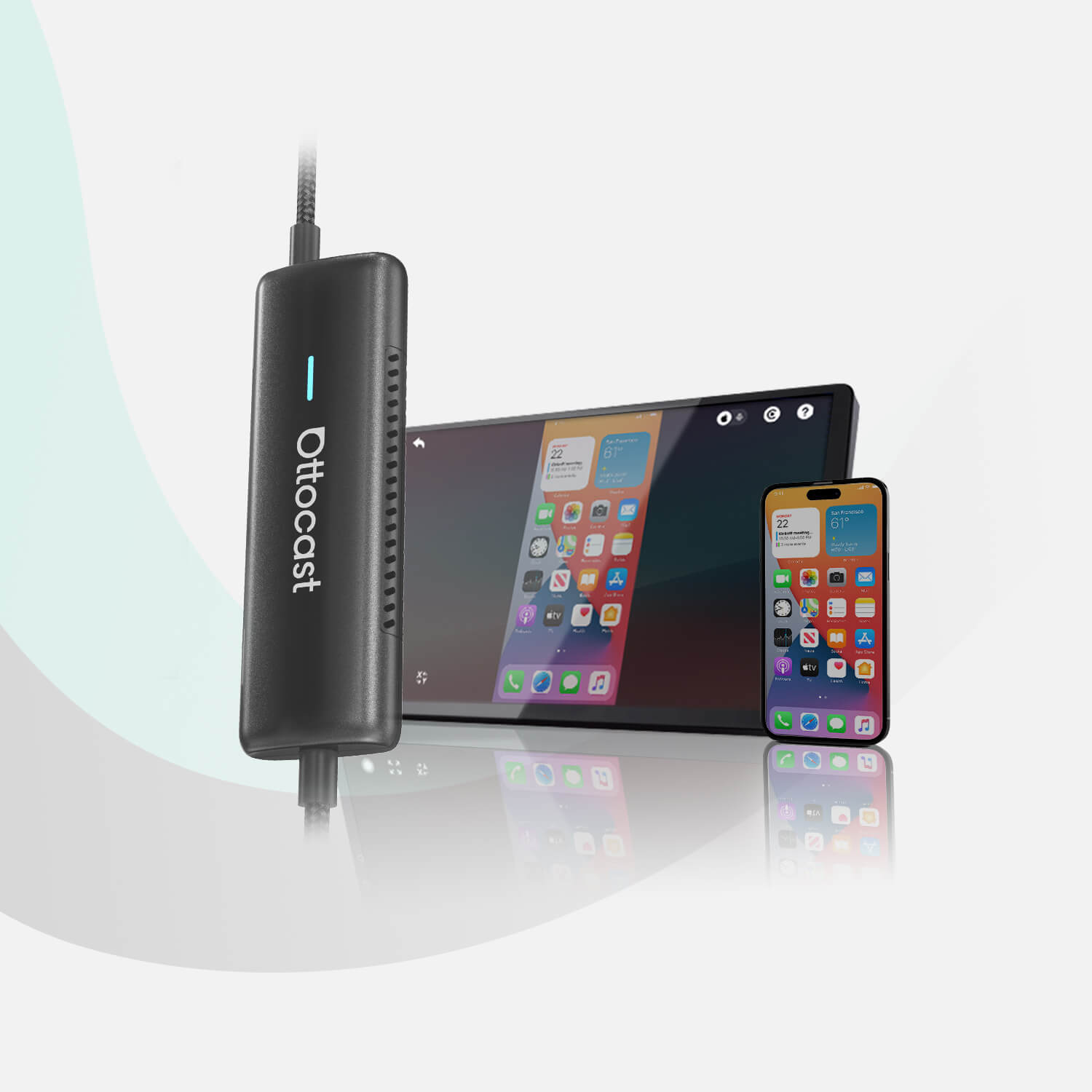
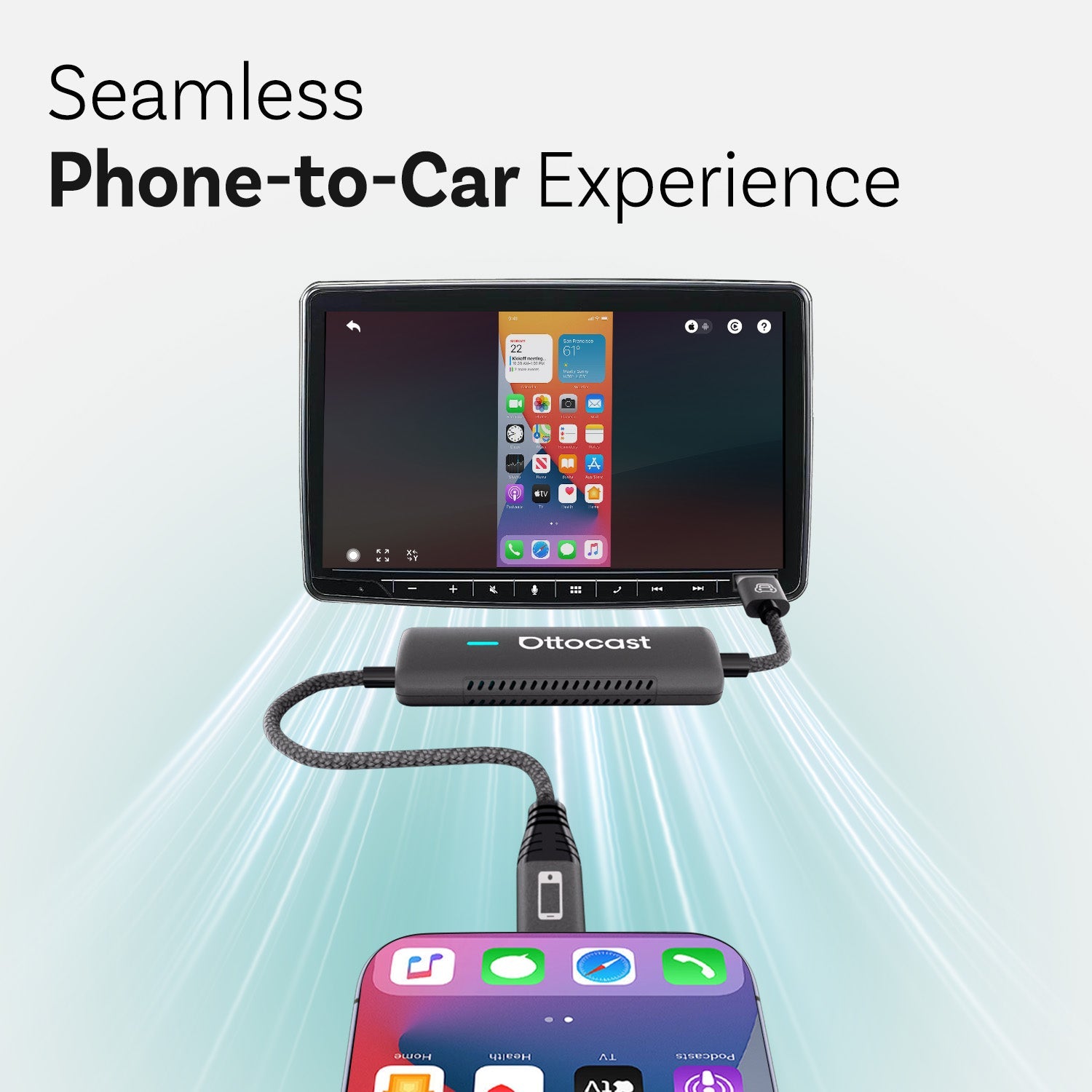
Now, if your vehicle only supports wired Android Auto, you can still upgrade the experience using devices that convert wired Android Auto to wireless. This will enable automatic connections every time you start the car.
What are the Key Features of Android Auto?

So, with Android Auto, you get the features you need the most, and it's all as simple and distraction-free as possible. How do you use it? Well, let's dive a little deeper.
Navigation
Google Maps and Waze will give you real-time traffic updates and turn-by-turn voice directions, as well as lane guidance and estimated arrival times. You can also use voice commands to search for gas stations, restaurants, parking, and more.
Calls and messaging
You can make hands-free calls or send and receive text messages without touching your phone. Incoming messages will be read to you, and you can use your voice to reply.
Music and podcasts
You can listen to Spotify, YouTube Music, Amazon Music, Audible, and other audio platforms, and you can access playback controls from the main screen or steering wheel.
Voice control
Google Assistant powers everything. Just ask for directions, ask it to control media, check the weather, or manage messages, all using natural voice commands.
Split-screen support
Many cars offer the option to follow navigation and media controls simultaneously, which makes multitasking much easier.
Third-party apps
Android Auto also supports a growing ecosystem of compatible apps. You can take a glance at the full list of supported Android Auto apps to view all available options.
Wired vs Wireless Android Auto: Quick Comparison
Both connection methods offer the same core features, but the day-to-day experience is different.
| Feature | Wired | Wireless |
|---|---|---|
| Connection | USB cable required | Automatic connection |
| Battery usage | Charges phone | Uses battery |
| Setup | Simple and stable | Requires compatible hardware |
| Convenience | Plug in each time | Hands-free startup |
Wired connections tend to be more stable, and they keep your phone charged during long drives. Wireless Android Auto, however, offers more convenience because it connects automatically whenever you start the car.
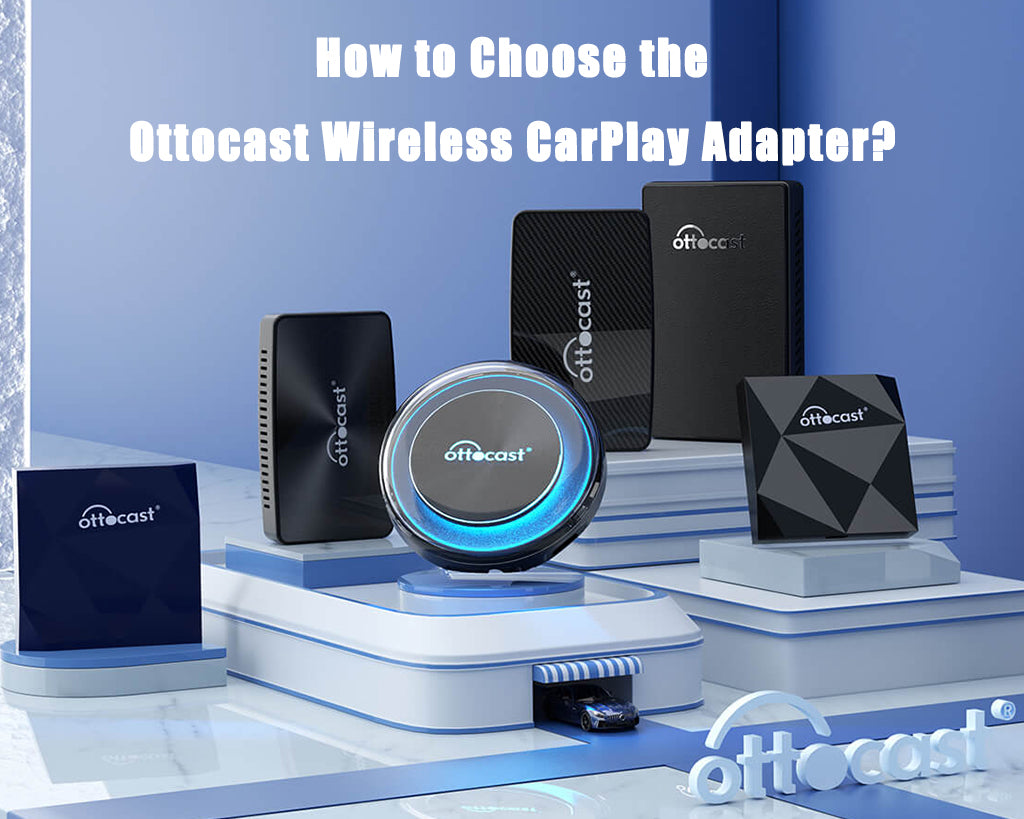
If you want to go wireless but your vehicle only supports wired mode, external devices can help. Many drivers use a wireless Android Auto adapter to upgrade older systems without replacing the head unit.
How to Set Up Android Auto (Step-by-Step)

Here's a quick tutorial.
- Check compatibility - Make sure your car and phone support Android Auto.
- Install or update the app - Most newer Android phones have it preinstalled.
- Connect your phone - Use a USB cable or follow your vehicle's wireless pairing instructions.
- Grant permissions - Allow access to contacts, messages, location, and microphone.
- Customize your experience - Choose default apps, adjust notifications, and enable Google Assistant.
There are instances where the app isn't available in your region. In that case, and a few other situations, you can consider a manual installation. If you or someone you know is comfortable with tech, you can take a look at the Android Auto APK installation tutorial. For official instructions, make sure to check the Android Auto setup guide.
Which Cars and Phones Support Android Auto?

Most Android devices that run Android 8.0 or newer versions support Android Auto. Some newer phones run the system directly through Google Assistant driving mode.
On the car side, hundreds of models from manufacturers such as Toyota, Ford, Volkswagen, Honda, and Hyundai include built-in Android Auto support. A lot of aftermarket head units from brands like Pioneer, Sony, and Kenwood also support the platform.
If your car doesn't include Android Auto, you still have options. External solutions and upgrades can help bring modern connectivity to older vehicles. For example, you can look at guides on Android Auto for older cars that explain what you need to do.
Common Android Auto Problems and Fixes (Quick Checklist)
-
Connection drops
Possible solution: Get a high-quality USB cable or try restarting your devices. It might be that simple. -
Lag or slow performance
Possible solution: Try closing background apps on your phone for a speed boost. -
Apps not appearing
Possible solution: Check the app compatibility list again, and confirm the required permissions are enabled. -
Wireless instability
Possible solution: Make sure your phone is up to date and try to avoid interference from nearby devices.
If you're dealing with persistent connectivity issues, it may be time to upgrade your hardware. Before you do, if you have any questions about upgrading your Android Auto experience, you can always contact Ottocast.
Android Auto vs Apple CarPlay
| Feature | Android Auto | Apple CarPlay |
|---|---|---|
| Voice assistant | Google Assistant | Siri |
| Navigation | Google Maps, Waze | Apple Maps, Google Maps |
| Customization | More flexible | More standardized |
| Device support | Android phones | iPhones only |
FAQs
Is Android Auto free?
Yes, it is a free service provided by Google to all users.
Does Android Auto use mobile data?
Yes. Navigation, streaming, and voice services use your phone's data connection.
Can you watch videos on Android Auto?
No. Video playback is restricted to reduce driver distraction and improve safety.
You may also like