


Section 1: Why is it essential to enable Siri for CarPlay?
Section 2: Enable Siri for CarPlay: A Quick and Comprehensive Guide
Section 3: Is Siri not working with your CarPlay?
Section 4: Can you enable Siri for the Ottocast wireless CarPlay adapter?
Just got a new CarPlay for your car and wondering how to enable Siri for CarPlay. Worry less. Here, we have a step-by-step guide for you.
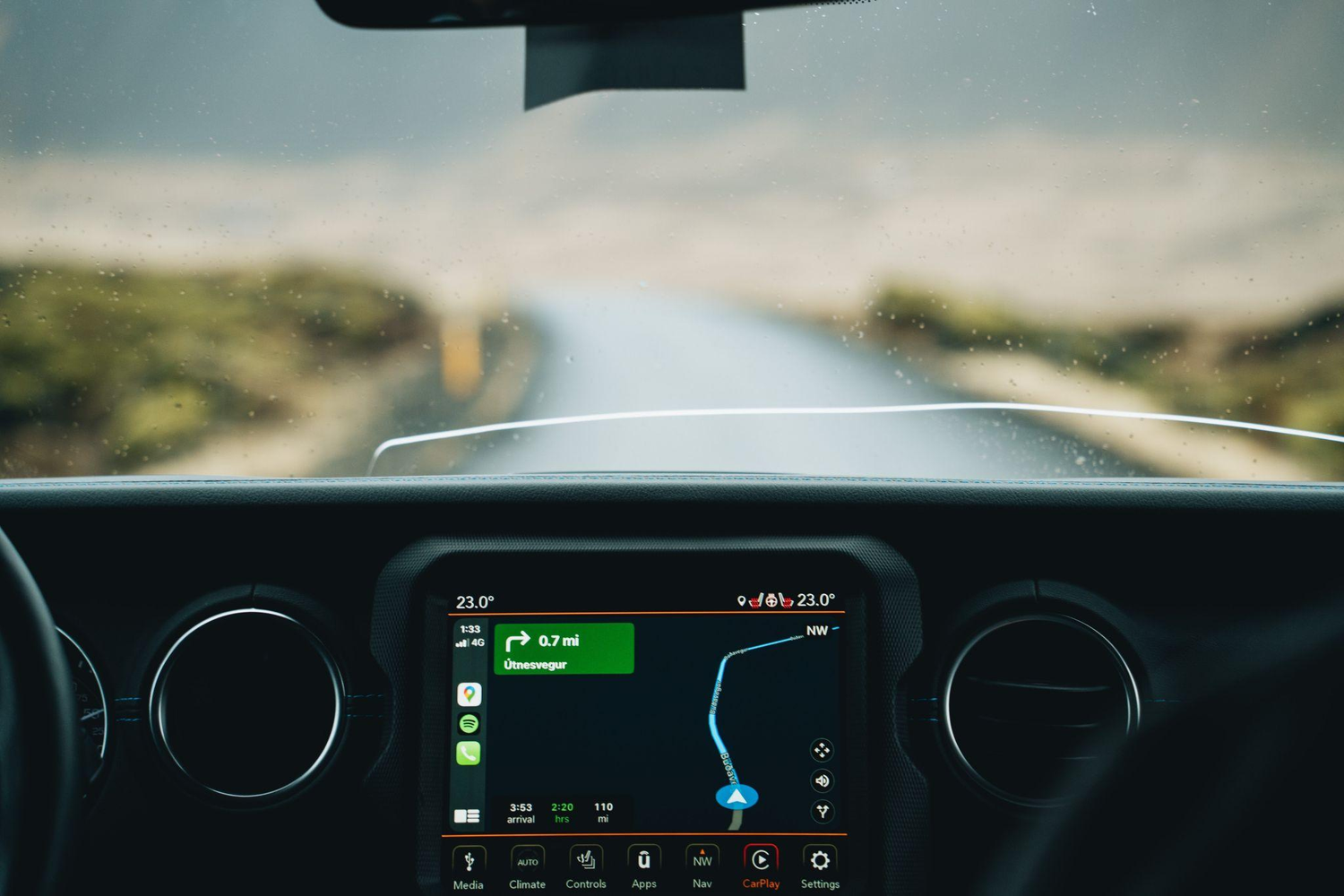
Gone are the days of dull drives. Thanks to technology for making our lives and drives easier day by day. While on the wheel, every driver seeks an entertaining, safe way to warm their journey. One such amazing invention of science is the wireless CarPlay adapters. A wireless CarPlay emerged as an effective solution that seamlessly integrates technology with road safety. It allows you to connect your iPhone with your car's CarPlay screen hassle-free, making it the main interface for accessing features like Siri. Just imagine enjoying a long drive with your loved ones without the stress of checking your phone again and again.
Whether it’s about answering a call or navigating Google Maps, your car’s screen will support you in everything. Among its standout features, Siri, your trusty voice-activated personal assistant, takes center stage. Thus, imagine the comfort of controlling your phone with voice commands. Siri enables hands free control, allowing you to operate your device safely while driving. You only need to say, “Hey Siri, Call Dad!” and it works. Wait, don’t you know how to enable Siri for CarPlay? We’ve got you covered. Here is a comprehensive guide about enabling Siri for CarPlay.
Introduction to Apple CarPlay
Apple CarPlay is a smart, user-friendly feature that brings the power of your iPhone directly to your car’s infotainment system. With Apple CarPlay, you can connect your iPhone to your car using a USB cable or enjoy the freedom of wireless CarPlay if your car supports it. Once connected, the CarPlay menu will automatically appear on your car’s screen, giving you easy access to your favorite apps, music, messages, and more—all designed for safe use while driving.
One of the standout features of Apple CarPlay is its seamless integration with Siri, Apple’s voice assistant. With Siri, you can use voice commands to play music, send messages, make calls, and search for information, all without taking your hands off the steering wheel. To enable Siri for CarPlay, simply go to Settings on your iPhone, tap on “Siri & Search,” and make sure both “Listen for ‘Hey Siri’” and “Press Side Button for Siri” are turned on. This ensures that you can activate Siri by saying “Hey Siri,” pressing the side button for Siri on your iPhone, or using the CarPlay menu on your car’s screen.
With Apple CarPlay, your daily drive becomes more connected, convenient, and entertaining. Whether you’re using a USB cable or enjoying wireless CarPlay, you’ll have instant access to your iPhone’s best features, all optimized for the road.
Why is it essential to enable Siri for CarPlay?
Before we start exploring how to connect Siri with CarPlay, let’s first understand why it is essential. However, it is totally your choice if you want to enable Siri for your CarPlay or not. But if you do this, you unlock enhanced safety, convenience, and entertainment. When you use Siri with CarPlay, you can easily perform tasks like navigation, calling, and messaging without distraction. Besides, it’s not just about convenience. Siri and CarPlay together can transform your car into a smart and interactive space. Here are the advantages of enabling Siri for CarPlay.
1. Allows you to focus better
Safe driving always starts with better focus. Siri for CarPlay makes a lot of digital things easier for you without lifting your hands from the steering wheel. Whether it’s about composing a text message, initiating a call, or changing your music playlist, Siri takes on these tasks, allowing you to maintain your concentration on the road. Thus allowing you to maintain a better focus on the road.
Additionally, features like Siri Eyes Free let drivers interact with their iPhone using voice commands and steering wheel controls, so you can keep your eyes on the road and operate your device hands-free for safer, more convenient driving.
2. Easy access to important information
In today’s world, where staying informed is paramount and essential, Siri turns your in-car oracle. With a simple voice control, you can access important information from Siri. And that too without lifting a finger. Whether you need to check the weather, discover nearby dining options, or receive real-time traffic updates, Siri has you covered.
Additionally, you can customize Siri's language settings on your iPhone to ensure you receive information in your preferred language while using CarPlay.
3. Enjoy convenience at its best
Imagine this: Siri controlling your navigation, playing your playlist, replying and reading messages for you, and so on. Doesn't this sound like having a personal assistant? All you need is to command, and things are done themselves. That's the benefit of enabling Siri with your CarPlay. You unlock the ultimate level of comfort and convenience.
Enable Siri for CarPlay: A Quick and Comprehensive Guide
Now, let’s jump to the major section of the blog and learn how to enable Siri for CarPlay. Before you begin, ensure Siri is enabled in your iPhone settings to allow voice commands with CarPlay.
Step-by-step guide to enable Siri for CarPlay:
Open the Settings app on your iPhone.
Tap on“Siri & Search.”
Toggle on“Listen for ‘Hey Siri’” and “Press Side Button for Siri.”
Make sure to enable “Allow Siri When Locked.” This allows Siri access from the lock screen for hands-free operation.
Connect your iPhone to your car’s infotainment system using either a USB cable (for wired CarPlay) or wirelessly.
Your iPhone must be properly connected to your car’s infotainment system for Siri to work with CarPlay.
There are two main ways to use CarPlay: wired CarPlay and wireless setups. Wired CarPlay uses a USB cable for a stable connection and charging, which can improve Siri functionality. For wireless setups, both Bluetooth and Wi-Fi need to be enabled and active on your iPhone and car system to ensure a stable connection. This is essential for seamless wireless CarPlay and Siri operation.
First, enable Siri for your iPhone
Before enabling Siri for your CarPlay, ensure it is enabled for your iPhone. All you need is to follow these simple steps:
Go to the "Setting."
Scroll down and find the "Siri & Search" option.
Toggle "Listen for Hey Siri" to the ON status.
Toggle "Press Side Button for Siri" to the ON status.
Toggle "Allow Siri When Locked" to the ON status.
Now, work on activating Siri
Once your CarPlay is connected to your iPhone, Siri is automatically enabled. To activate Siri, you can try any of the following ways.
Voice Command:Once your CarPlay is tuned with the mobile, say, "Hey Siri." This will open Siri up. Remember that some older iPhones don't support the "Hey Siri" command. And this option might not work with that.
CarPlay Display:The second way to activate Siri is by holding down the white circle Home button on the left or right bottom of the display. This will activate Siri on your CarPlay.
Use Your Steering Wheel Button:This feature works when your steering wheel has a voice button option. When you hold the voice button for a while, it activates Siri for CarPlay.
Remember, when you have an aftermarket CarPlay install, this feature may vary depending on the vehicle and hardware vehicle used in the vehicle.
Using Siri Features
Siri is your personal co-pilot when using CarPlay, making it easier than ever to stay connected and in control while keeping your focus on the road. With Siri voice commands, you can perform a wide range of tasks hands-free. Simply say “Hey Siri” or press the voice command button on your steering wheel to activate Siri. If you prefer, you can also press the side button for Siri on your iPhone to get started.
Once Siri activates, you can use your voice to play music, send messages, make hands-free calls, or access your favorite apps. For example, just say, “Hey Siri, play my favorite playlist,” and your music will start playing through your car’s speakers. Need to send a quick text? Say, “Hey Siri, send a message to John,” and dictate your message without ever touching your phone. Siri can also help you get directions, check your calendar, or search for nearby restaurants—all with simple voice commands.
Using Siri with CarPlay means you can enjoy hands-free texting, effortless music control, and easy access to information, all while keeping your hands on the steering wheel and your eyes on the road. With the combination of the steering wheel button, side button for Siri, and the power of voice activation, Siri functionality in CarPlay brings a new level of convenience and safety to your driving experience.
Is Siri not working with your CarPlay?
Even after following the above start, if you’re unable to integrate Siri and CarPlay together, there might be a few things that you must ensure again to make this happen. Follow the given below steps to enable Siri for CarPlay.
Check if your vehicle is compatible with CarPlay: First, start with finding CarPlay for your vehicle. You can always trust OttocastCarPlay. The cherry on the cake is that most modern cars are compatible with Ottocast CarPlay. However, it’s always wise to double-check. You can explore the Ottocast guidelines and website for detailed information. If the CarPlay is not connected with your Car Screen, you can never enable Siri in it.
The latest the software version, the faster the Siri and CarPlay Integration: Another factor that might be hindering you from enabling Siri for CarPlay is the frequent updates from Apple. We know that Apple consistently rolls out updates to enhance performance. Moreover, it keeps adding new exciting features. Hence, you must update your device for a seamless Siri CarPlay experience. To update your software, open your phone’s settings, tap “General,” and select “Software Update.” Download the latest iOS version to equip your iPhone for the adventures ahead.
Ensure that the connection between CarPlay and the device isn’t lagging: Even after following the above two steps, if you’re not able to enable Siri for CarPlay, there’s a huge possibility that your connection is lagging. Check the Bluetooth and WiFi connectivity again. Ensure that there’s no network hindrance. Connection issues are a common reason for Siri not working properly with CarPlay, so make sure your USB, Bluetooth, or Wi-Fi connection is secure and stable.
Enabling Siri for CarPlay is a breeze: Once you have established a smoother connection between CarPlay and iPhone. Worryless, enabling Siri for CarPlay is a breeze. On your CarPlay screen, search for the “Settings” icon, a little gear symbol. Once you’ve located it, tap on it like a seasoned explorer ready to uncover hidden treasures. Scroll down for a detailed experience.
After each troubleshooting step, test if Siri responds to your voice commands to ensure the issue is resolved.
Most issues with Siri and CarPlay can be resolved by simple troubleshooting, such as checking permissions, reconnecting your device, or updating your software.
If problems persist, try to reset CarPlay settings on your iPhone and your car’s infotainment system. This can resolve stubborn issues like Siri not responding or CarPlay not appearing.
Additionally, restarting your iPhone or the car’s infotainment system can help fix connectivity or functionality glitches if Siri or CarPlay is still not functioning properly.
Can you enable Siri for the Ottocast wireless CarPlay adapter?
Worry less while purchasing an Ottocast wireless CarPlay adapter. Each CarPlay from Ottocast is effectively designed, considering all technical and connectivity aspects. Thus, you don't have to wonder how to integrate Siri for Ottocast CarPlay, and it can be done simply with the steps mentioned above. All you need to do is enable Siri for your iPhone and then activate it for your car. All CarPlays from Ottocast are Siri-compatible. You can enjoy indefinite advantages from them, including:
Most importantly, with Siri and CarPlay together, you can manage most of your call messages. Make a call, receive it, type a message, and send it to the required recipients without lifting your finger.
With our Wireless CarPlay Adapter, you have a co-pilot that never misses a turn. Siri, your trusty voice-activated assistant, is at your service. Integrate Siri with Ottocast CarPlay and enjoy the numerous advantages. Simply command your destination, and Siri will provide turn-by-turn directions, allowing you to stay on course and keep your eyes where they belong – on the road ahead.
With voice commands at your disposal, you are the maestro of your music library. Ask Siri to play your favorite songs, artists, or playlists, and watch as your car transforms into a rolling concert hall.
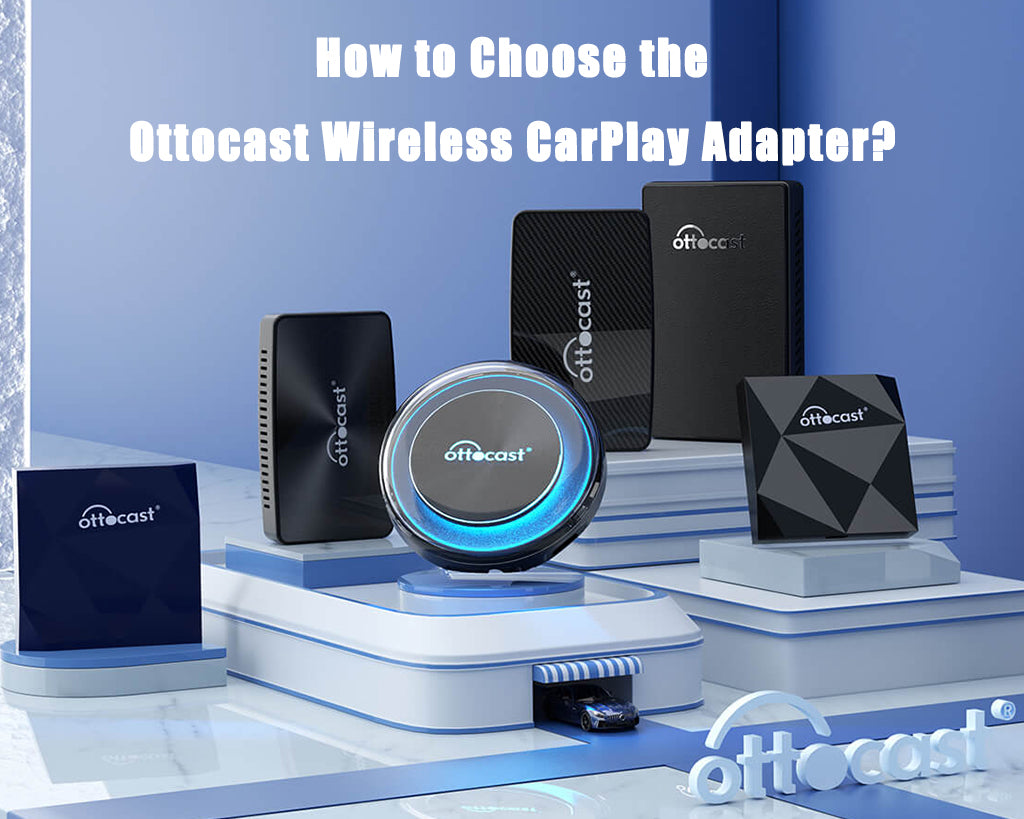
Connecting with technology to keep up with the present digital world is essential. Remember, choosing the right CarPlay adapter is crucial for a seamless experience. Ottocast offers a range of high-quality, Siri-compatible CarPlay adapters, including the U2-AIR Wireless CarPlay Adapter, the U2 AIR Pro Wireless CarPlay Adapter, and the OTTOULTRA #082 Wireless CarPlay Adapter. These adapters bring wireless connectivity, lightning-fast performance, and compatibility with a wide range of car models, ensuring you get the best out of your CarPlay and Siri integration.
Undoubtedly, enabling Siri for CarPlay makes a lot of tasks easier for you. It unlocks your dream world full of comfort, safety, and entertainment at your voice command without uplifting a single finger. While you can focus on your driving, you can also control your phone hassle-free. Ottocast CarPlay wireless adapters are the game changer for your driving experience. While CarPlay eliminates the web and the fusses of wires and cables, enabling Siri for CarPlay makes a lot of tasks, including answering calls, providing navigation directions, reading messages, and accessing important information easier.
But there are a few things that you must keep in mind to turn this dream into reality. The first and foremost thing is to ensure that your vehicle is compatible with CarPlay. Also, your iPhone must be updated with the latest software update. Once done, establish a firm connection between CarPlay and iPhone. After that, configuring Siri for CarPlay is a breeze, and you'll have a powerful voice-activated assistant ready to assist you on the road.
What are you waiting for? Whether embarking on a long road trip with your loved ones or running errands around local streets, enabling Siri for CarPlay will make your journey safer, more convenient, and more enjoyable. Get your Ottocast wireless CarPlay adapter today!
Featured Products