

Introduction: Why Customizing CarPlay Matters to Everyday Driving
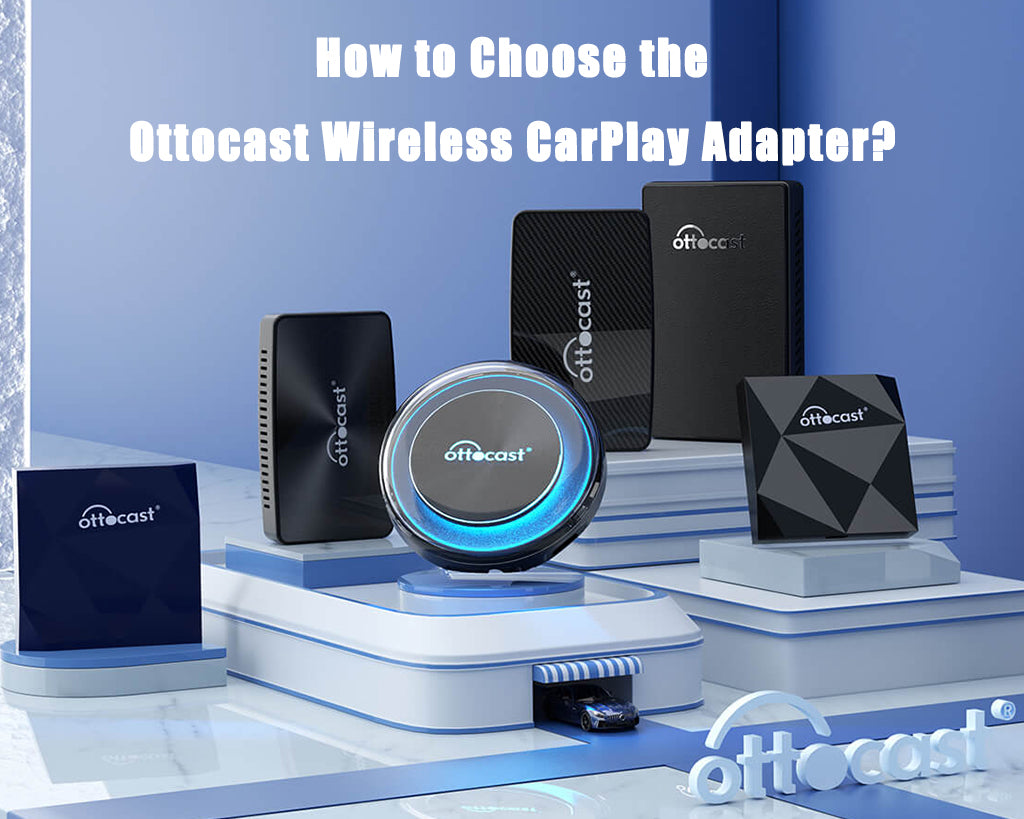
When you enter your car, the way CarPlay looks and works should match your habits. Many people keep the default layout and never try to change it. But CarPlay actually gives you more choices than many users realize. If you learn how to edit the CarPlay screen and how to adjust different settings, you can shape the interface so that it feels simple, direct, and comfortable. You can also reduce distractions and move the tools you use most into easier positions. This article explains several ways to personalize CarPlay settings. It also shares real examples of how users create smoother and safer driving experiences. Because many drivers now use wireless adapters or AI boxes, the article may also mention devices that support CarPlay, such as those from Ottocast, though the main purpose here is to help you understand the system itself and how to improve CarPlay experience in general.
Understanding What You Can Adjust in CarPlay
When people think about CarPlay, they often imagine only navigation and music. But CarPlay offers more layers of customization: you can reorder app icons, choose which apps appear, adjust notification settings, change sound output, and decide how CarPlay connects every time you start your car. The controls let you create a layout that will seem natural to you. And if you also use a wireless adapter or an AI box, it can even feel more flexible because the connection becomes smoother and the system becomes more adaptive. Still, even without extra hardware, the built-in CarPlay system has enough controls to shape your daily driving environment.
How to Edit the CarPlay Screen Layout
Knowing how to edit the CarPlay screen layout is one of the most useful skills you can have. Open Settings → General → CarPlay on your iPhone, select your car, and tap Customize. This page gives you control over how your CarPlay home screen will look. You can move your navigation app to the first position. You can place your music app right next to it. You can remove apps that you never use while driving. This will help you avoid confusion and make it easier to tap on the correct icon when your attention must stay on the road.

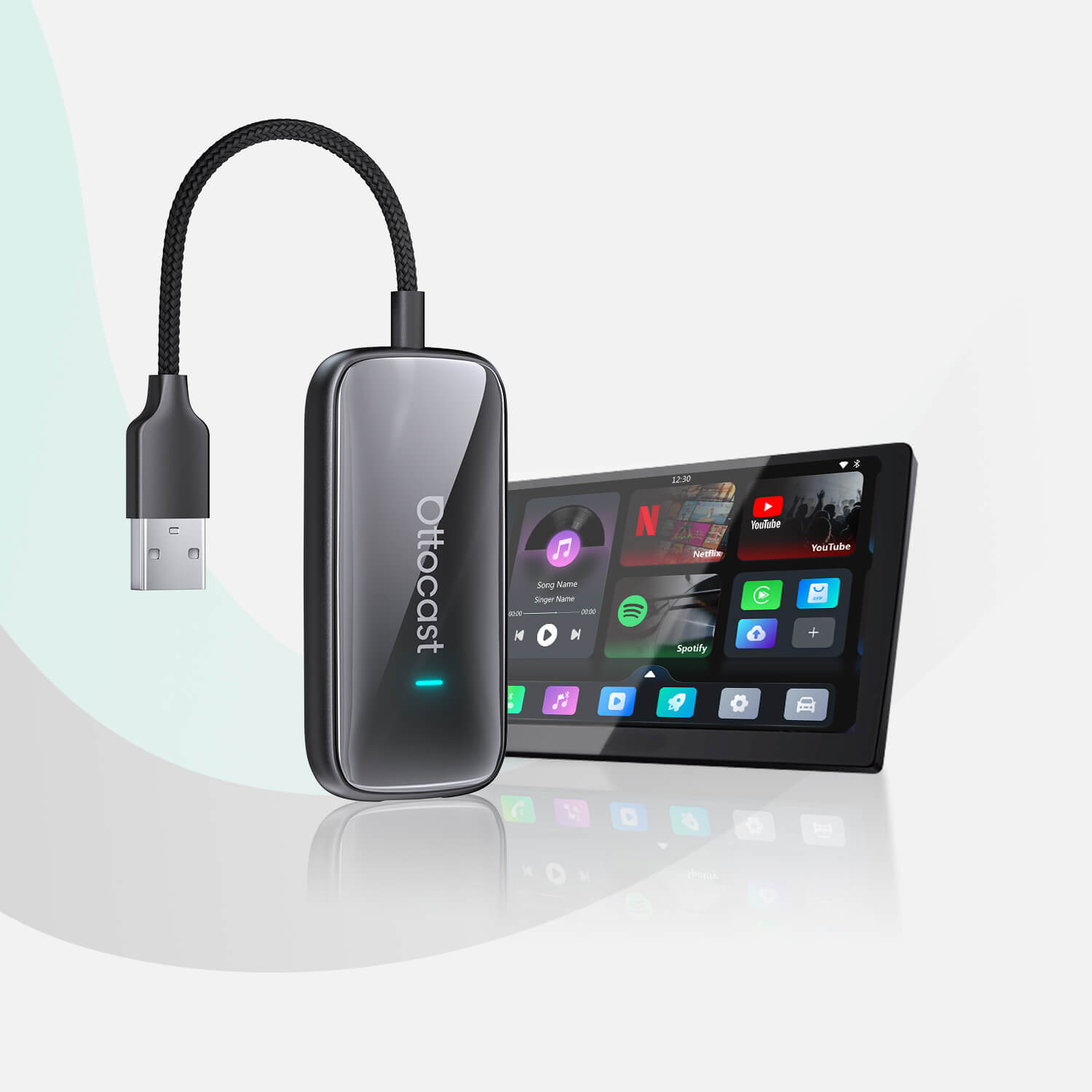
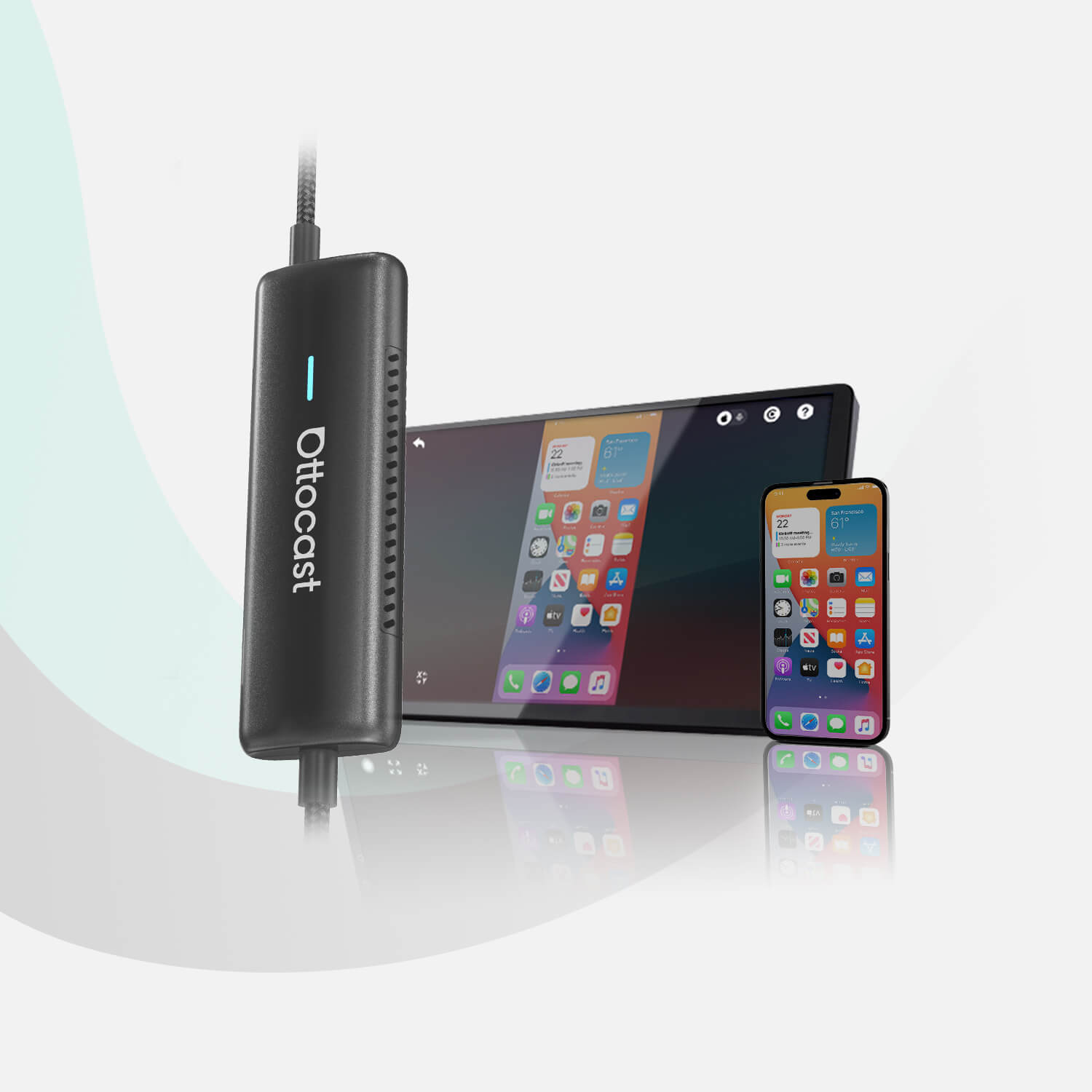
When drivers employ wireless CarPlay-supporting devices, such as the Ottocast Mini 3.0 Cube, they often edit the on-screen apps layout so that the most used apps remain on the first page after wireless connectivity. When the interface loads fast and icons are just where you expect to find them, the experience with CarPlay becomes smoother. The point here is not to promote the hardware itself but rather the fact that a clean and organized screen layout is a convenience no matter which CarPlay setup you are using.
Creating a CarPlay Layout That Matches Your Driving Style
Your CarPlay layout should depend on how you use your car. For example, if you commute every day, your first page may include navigation, music, and call apps. If you take long trips on weekends, you might also place audiobook or podcast apps where you can tap them easily. If you share the car with your family, you may want to remove apps that distract younger passengers.
Many users divide their layout into pages. They keep driving-related apps on page one and entertainment apps on page two. This makes the first page simple and safe. Some drivers also use the dock—the row of icons that stay on every page—to keep the three apps they use the most. When you arrange your layout based on your own habits, CarPlay becomes much easier to use without thinking.

Personalizing Notifications for a Safer and Cleaner Experience
CarPlay also lets you control notifications. Some like to see the alerts for messages when on the wheel, while others find it distracting, especially in thick traffic. You can specify which apps show up in CarPlay on your iPhone by going to Settings → Notifications. For anyone that turns notifications off for social apps, CarPlay's screen will remain tidy. It also helps reduce the possibility of looking at the screen for too long.
Depending on how many work messages you get, you might want to disable previews so that CarPlay will let you know a message came in but won't show you the whole thing. This keeps your attention on the road. If you use Siri, the voice assistant can read the messages out loud, which also helps reduce visual distractions.
Adjusting Sound and Audio Behavior
Sound settings also affect how comfortable CarPlay feels. In many cars, CarPlay shares the same audio channel as the car’s media system. But some vehicles allow separate volume controls. When you adjust CarPlay volume, you can choose levels that match your driving environment. When you use wireless adapters or AI boxes, you may have additional sound routing options, depending on the model and car system. Still, the main focus should remain on creating a balanced audio level that keeps your driving safe and enjoyable.
Building a Smooth Connection Experience
A stable connection makes CarPlay feel effortless. If you use wired CarPlay, the main task is to keep your cable in good condition. If you use a wireless adapter, you may adjust auto-connection settings. Many drivers set their devices to connect automatically so CarPlay launches without extra steps. Some allow manual connection when they share their car with another driver. The smoother the connection, the more natural the overall experience becomes.
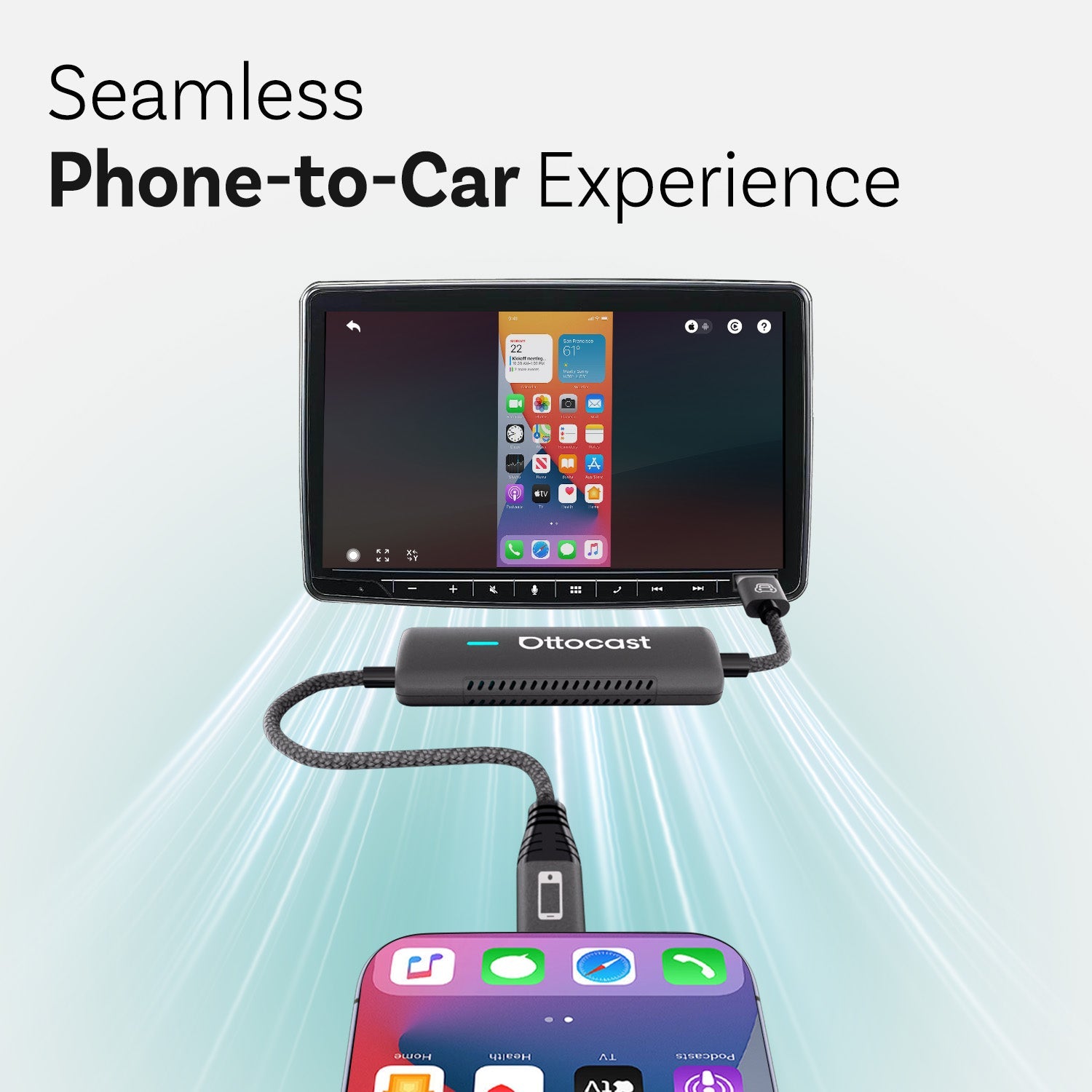
For users who use wireless CarPlay adapters like those from Ottocast, software updates often improve stability. But again, this article focuses more on knowledge—understanding why updates matter and how connection habits change your experience—rather than promoting specific hardware.
Going Beyond Standard CarPlay: Customization Through AI Boxes
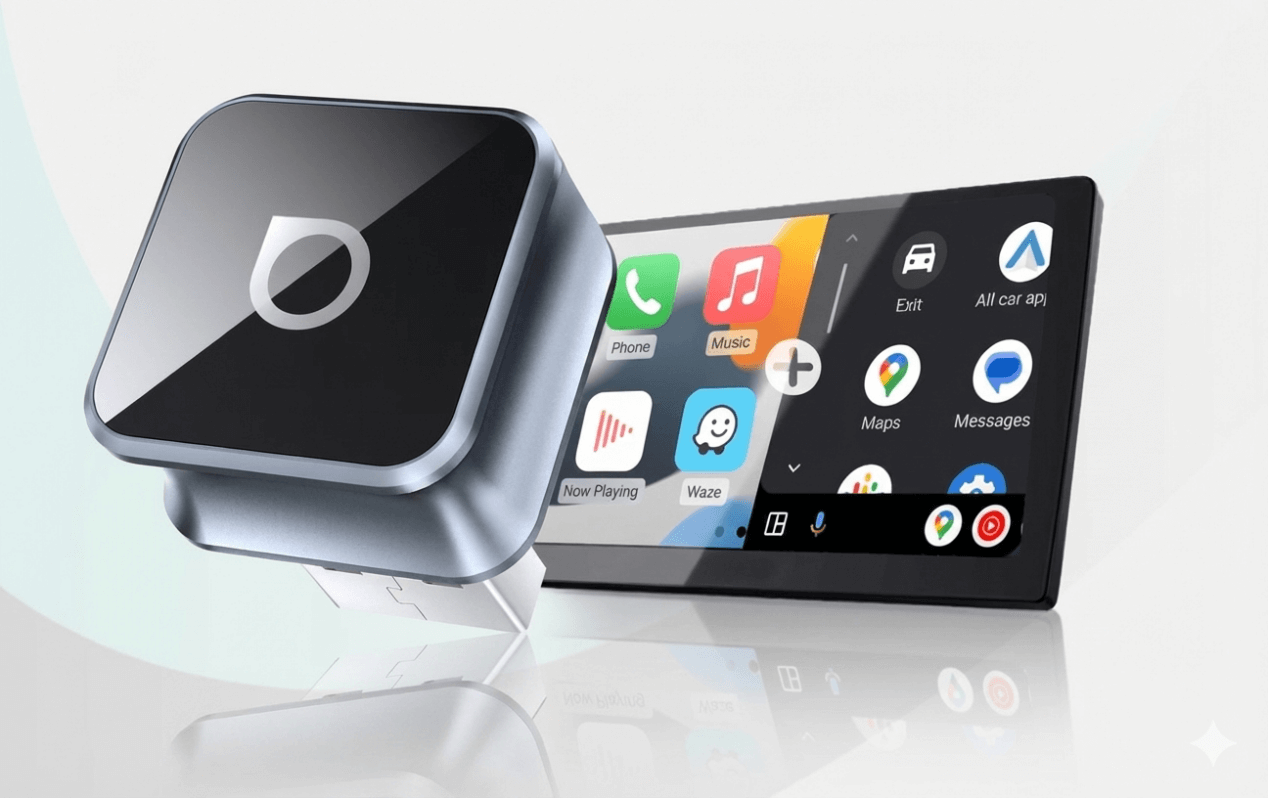
Some drivers want more than what standard CarPlay offers. AI boxes run an Android-based system and provide more apps than CarPlay supports. They allow you to download navigation, streaming, or utility apps. They offer home-screen customization similar to a phone or tablet. Ottocast’s OttoAibox P3 is an example of this type of product, but the idea itself is what matters: an AI box gives you more freedom to shape your in-car interface.

People who use these devices often place navigation apps on one page and entertainment apps on another. They adjust system brightness, manage data connections, and change how the interface responds when the car starts. This kind of customization works best for drivers who want a more complete smart-screen experience.
Matching CarPlay Settings to Real Driving Situations
Customization is most meaningful when it matches real scenarios: if you drive to and from work in crowded areas, you may want minimal notifications and simple layouts, with strong voice control. On long road trips, you may want multiple navigation apps and easy access to podcasts. If your children sit in the back seats, you'll set up separate entertainment tools that only work when the car is parked.
When you know how to adjust settings in CarPlay, you don't depend on the defaults anymore. You can build an environment for your own style. You can also avoid confusion and reduce unexpected interactions with the screen.
Safety as the Core of Every Customization
While personalization of CarPlay adds convenience, safety should always be your number one priority. Yes, you will probably use devices that support more apps, but don't watch videos while driving; use entertainment tools only when parked. CarPlay is designed to keep your eyes on the road: a clear layout, few notifications, and robust voice integration all contribute to meeting this goal.
How a Well-Customized System Feels Over Time
Once you fully customize CarPlay, you will notice how much calmer your daily driving becomes. A good layout lets you tap the correct icon without searching. Reduced notifications keep your mind clear. Consistent auto-connection removes stress at the start of every drive. When all these elements work together, CarPlay becomes a natural part of your routines instead of something you need to constantly adjust.
If you later choose to use wireless adapters or AI boxes, your customization skills still matter because the logic remains the same: your screen should reflect your habits, not the factory default.
You may also like